AI Tools Analysis
CapCut vs AutoAE: When You Need “Pro Motion” Not Basic Edits
April 3, 2026

Selina ZFocused on in-depth research in AI tools, AI video, and generative AI.

|
Category
| ||
|
Core Role
|
Video editing, content assembly, and fast publishing
|
Motion graphics generation and animation layer creation
|
|
Best For
|
Cutting footage, subtitles, transitions, and short-form editing
|
Kinetic typography, animated hooks, and polished motion overlays
|
|
Workflow Position
|
Main editing timeline
|
Motion asset creation for overlay, export, and reuse
|
|
Learning Curve
|
Very low
|
Very low
|
|
Starting Price
|
Free (Pro: $14.99/month)
|
Free (Starter: $12/month)
|
|
Ideal Use Together
|
Edit in CapCut → Generate motion in AutoAE → Import polished overlays back into CapCut
| |
Intro
Short-form video editing has never been easier, but making content feel visually distinctive is still hard. CapCut has become one of the fastest ways to cut footage, add subtitles, and publish content across TikTok, Reels, and Shorts. But as creators grow, many run into the same next-step problem: basic editing is fast, yet polished motion still takes real time, creative judgment, and often a more advanced toolset.
That gap is exactly where many creators get stuck. CapCut is great for editing. AutoAE vs After Effects is powerful for serious motion design. But between those two worlds, there is still room for a tool that helps creators produce stronger motion without jumping straight into a full professional animation workflow.
In this guide, we’ll look at CapCut more realistically, explain where its workflow starts to slow down for motion-heavy content, and show how AutoAE can work as both a practical CapCut companion and a lightweight bridge toward more advanced motion design thinking.
Why So Many Creators Start With CapCut
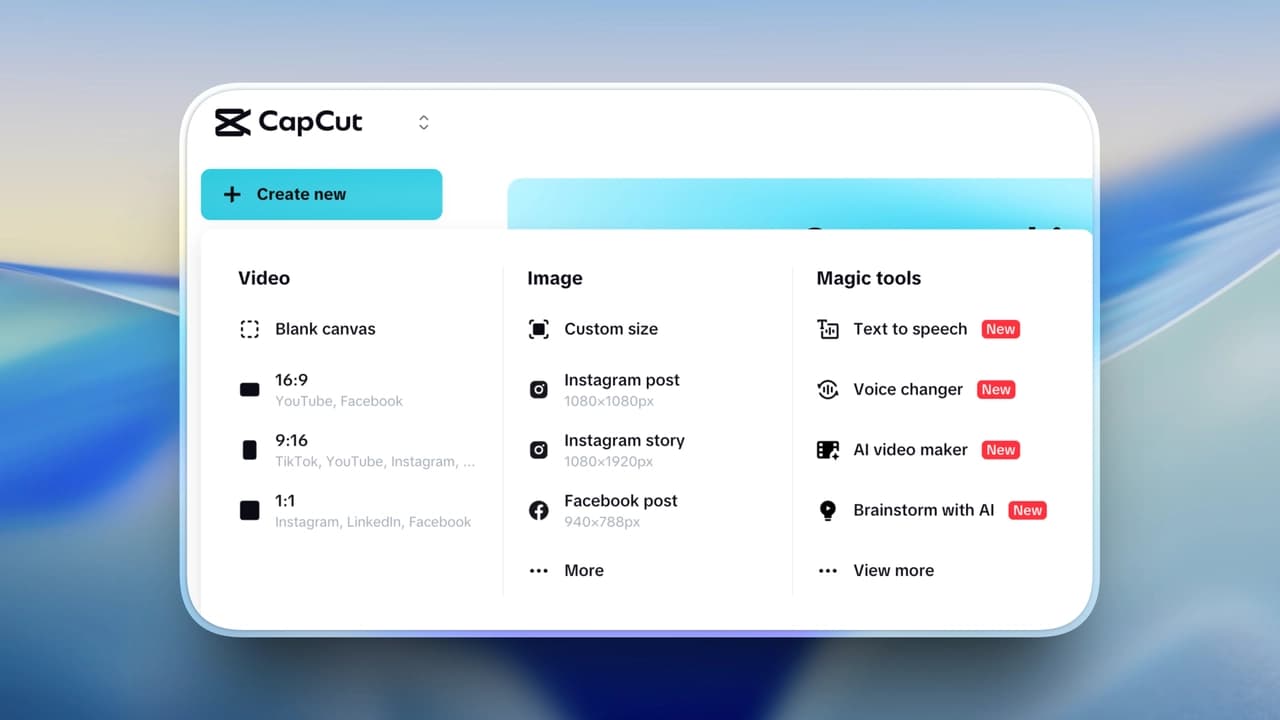
CapCut has become one of the most widely used editing tools in short-form content creation. Developed by ByteDance, the parent company of TikTok, it fits naturally into the vertical video ecosystem and is built for speed-first publishing.
At its core, CapCut is a timeline-based editor, and that is exactly why it works so well for everyday creators. Its strengths include:
-
Fast trimming and clip arrangement
-
Built-in subtitle and auto-caption tools
-
Easy transitions, effects, and social-ready export
For many creators, that is enough. If your main job is editing footage and getting content out consistently, CapCut remains one of the most efficient tools available.
Where CapCut Starts to Feel Limited for Motion Work
The challenge is not that CapCut is “bad” at presets. In fact, presets are part of what makes it so approachable. The real limitation shows up when motion becomes an important part of the storytelling itself.
Once you want more deliberate kinetic typography, layered animation systems, or stronger visual hooks, the workflow becomes more demanding. That is not unique to CapCut either. In many ways, it mirrors the same tradeoff creators face in After Effects: better-looking motion usually means more manual setup, more time, and heavier rendering.
At that point, creators often run into a few practical bottlenecks:
-
Limited precision for advanced animation: CapCut includes keyframes and built-in animation options, but it is not designed for deep timing refinement, graph-level control, or complex motion systems.
-
More time spent building motion manually: Simple animations are quick, but once a sequence becomes more layered or style-driven, production time rises fast.
-
Heavy projects become harder to manage: Large files, motion-heavy scenes, and repeated export cycles can slow down the workflow and increase rendering friction.
-
Editing and motion design become mixed together: The more animation you build directly inside the edit, the messier the timeline can become.
So the issue is not that CapCut fails at editing. It is that editing and motion design are not always the same job.
The Real Gap Between CapCut and After Effects
For creators who want to level up, After Effects is the traditional next step. It offers far more control, deeper compositing, and true frame-level animation precision.
But jumping straight from CapCut to After Effects can feel overwhelming. The learning curve is steeper, production takes longer, and even strong editors often need time before they understand what makes motion feel intentional rather than random.
That is why many creators need something in between: not just another editor, and not a full-blown compositing environment, but a tool that helps them create better motion while also teaching them what good motion looks like in practice.
Where AutoAE Fits
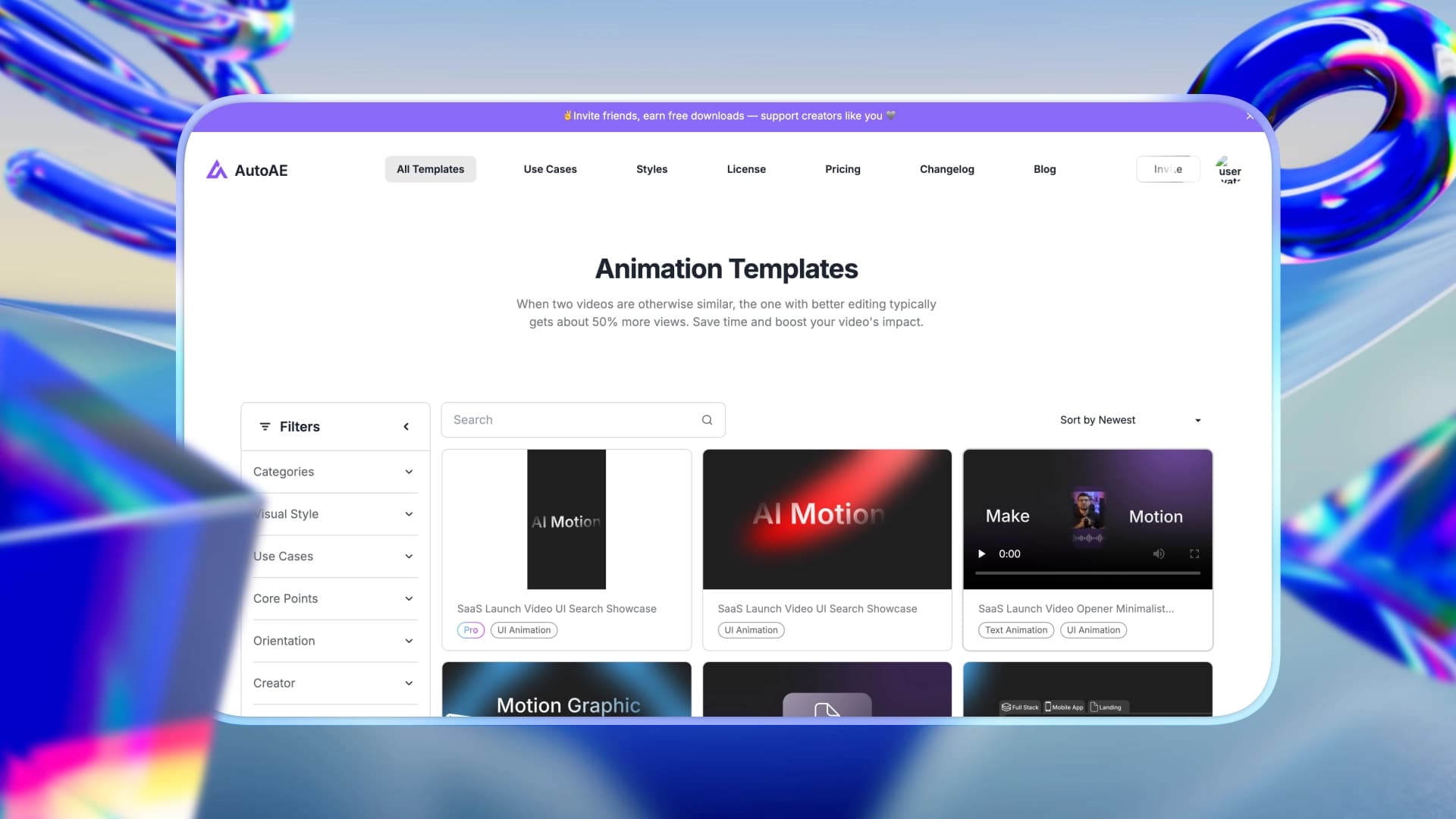
AutoAE is not a traditional timeline editor. It is built for a different part of the workflow: generating motion graphics layers, especially for short-form hooks, animated typography, and high-retention visual moments.
Instead of asking creators to build every animation manually, AutoAE helps them generate structured motion faster. That makes it useful in two ways.
-
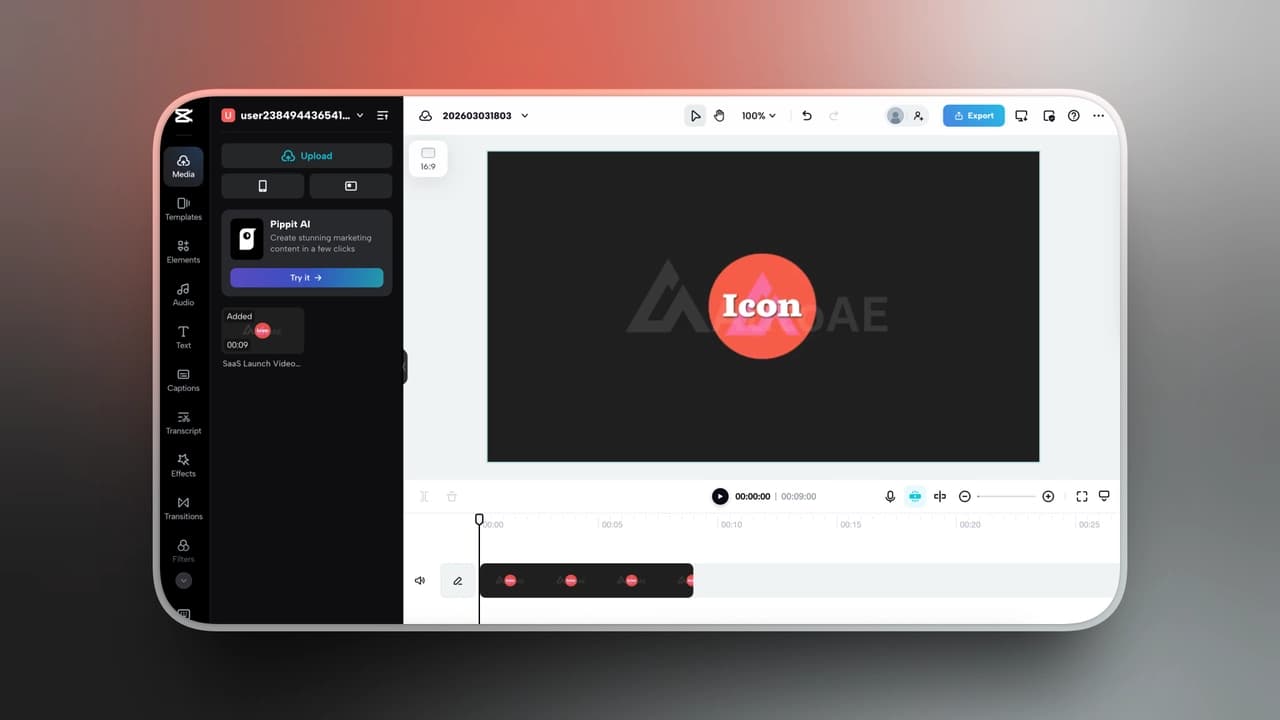
As a CapCut companion: You can keep CapCut as your main editor, then create polished motion assets in AutoAE and bring them back into the timeline as overlays.
-
As a learning bridge: AutoAE helps editors study stronger motion patterns, understand how good hooks are constructed, and gradually build better visual instincts before going fully into After Effects.
In practical terms, this means:
-
Less manual keyframing for common motion-heavy moments
-
Cleaner separation between editing and motion design
-
Transparent exports that can be reused inside CapCut and other editors
-
A faster path for creators who want work that feels more polished without immediately mastering After Effects
In that sense, AutoAE is not trying to replace everything CapCut does. It fills the space between “fast editing” and “full professional motion design.”
The Smart Workflow: CapCut + AutoAE
Professional creators rarely force one tool to do everything. The smarter setup is often to keep each tool focused on what it does best.
CapCut remains your main editing environment. AutoAE handles the motion-heavy pieces that would otherwise take more time to build manually. This creates a workflow that is faster than doing everything in After Effects, while still producing a more polished result than relying on editing tools alone.
Here is how this workflow works in practice:
-
Main Editing in CapCut: Cut footage, sync audio, add captions, and build your main timeline.
-
Generate Motion in AutoAE: Create animated hooks, typography, and motion graphics layers without building everything from scratch.
-
Bring It Back Into the Edit: Export your motion assets and import them back into CapCut as overlays or picture-in-picture elements.
This approach keeps the edit clean, speeds up production, and helps creators gradually understand how stronger motion design works.
Final Takeaway
CapCut is still one of the best tools for fast editing, content assembly, captions, and publishing. It solves the editing side of the workflow extremely well.
AutoAE solves a different problem: helping creators produce stronger motion graphics without immediately stepping into the full complexity of After Effects.
That makes AutoAE both a useful CapCut alternative for certain motion-first tasks and a strong CapCut companion for editors who want to level up. If CapCut helps you edit faster, AutoAE can help you make that edit feel more designed, more intentional, and more professional.
|
You Are…
|
Your Priority
|
Better Fit
|
Why
|
|
Shorts / TikTok Creator
|
Speed and fast publishing
|
CapCut + AutoAE
|
Use CapCut for editing speed, then add stronger motion only where it matters most
|
|
YouTube Long-Form Team
|
Structured workflow and polish
|
CapCut (editing) + AutoAE (motion assets)
|
Separate editing from motion to keep production cleaner and more scalable
|
|
Editor Ready to Level Up
|
Better motion without a steep learning curve
|
AutoAE
|
A practical bridge between simple editing and advanced motion design
|
|
Designer / Motion Artist
|
Full creative control
|
After Effects
|
Best for frame-level precision, advanced compositing, and custom systems
|