How to Use AutoAE Agent

AutoAE Agent lets you create motion graphics through conversation. Describe what you want to make, choose a template, and ask the Agent to edit it for you. You can also make adjustments yourself in the editor on the right.
Prefer to start with a design and edit it manually? Browse All Templates, choose a template, and customize it directly.
1. Tell the Agent what you want to make
Open AutoAE Agent and describe your video. You can start with a short idea, a script, or text and images. For example:
Make a portrait motion graphics clip for my product launch. Use the headline "Meet your new workspace" and end with "Try it today."
 Describe your idea to get started. AutoAE launch illustration.
2. Choose a template
The Agent recommends template candidates. Preview them, choose the design you like, and select Use template to start editing.
 Preview the recommendations and choose a template. The displayed dimensions and fields vary by design.
3. Ask for changes in the conversation
Tell the Agent what you want to change. You can edit the copy, change its color, and replace images. Try instructions like these:
- "Change the headline to 'Your work, all in one place.'"
- "Make the headline text purple: #7C3AED."
- "Replace this image with the one I just uploaded."
Upload an image from your computer when you want to use your own content. You can crop the uploaded image within the Agent conversation to fit the space in your template.
4. Fine-tune in the editor on the right
The Agent can edit the template for you, and you can also adjust it manually in the right-hand editor. Use the template's available controls to refine the text, colors and media.
To add video, upload it in this editor. You can use both conversation and manual adjustments while working on your clip.
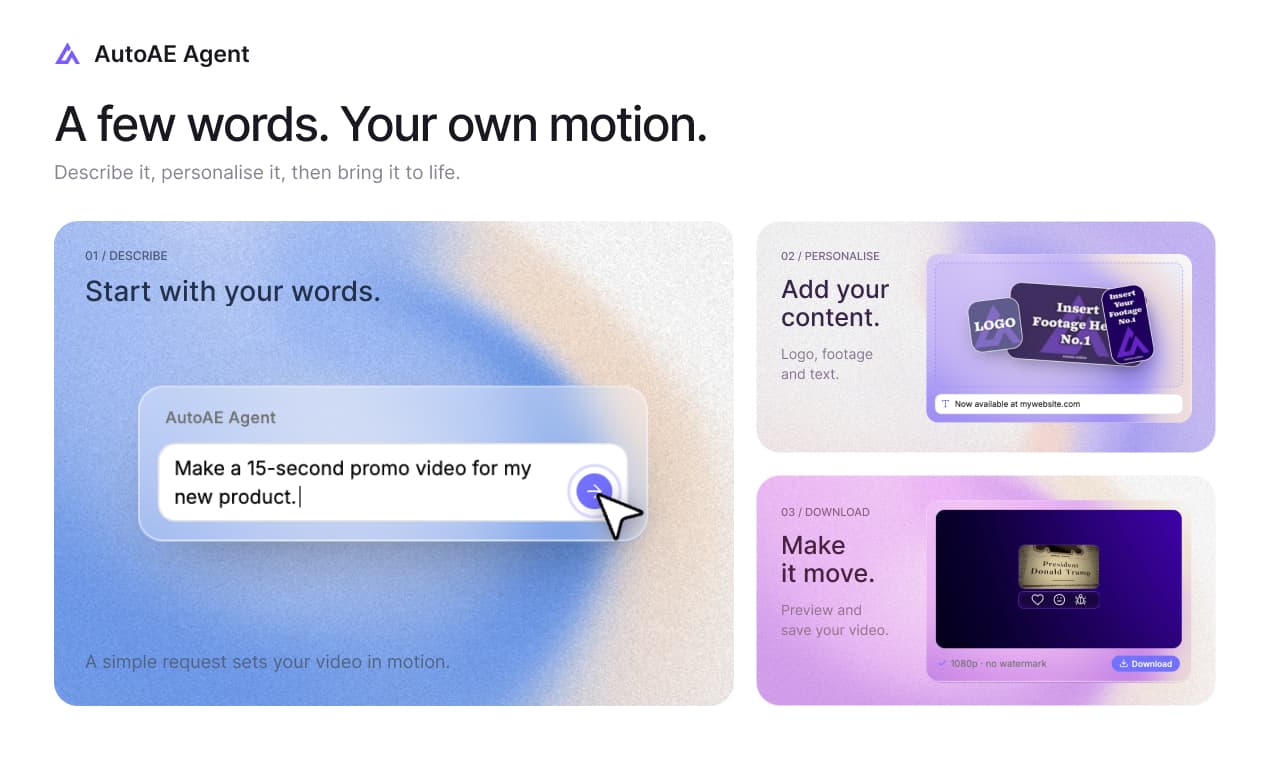 Add your content and preview the result. This launch illustration shows an example request; export options depend on your account.
5. Render a preview, then download
Render a preview and watch it through. Check the wording, text colors and image crops. If anything needs changing, ask the Agent or adjust it in the right-hand editor, then preview again.
Once the preview looks right, use Download to export the final video. A paid account is required for 1080p downloads and commercial use.
Each export is one video clip without music. If you are working from a longer script, the Agent can recommend templates in stages; combine the exported clips and add audio in an external editor.
AutoAE supports text and image input. Upload video inside the editor; website and video links are not supported as source inputs.
Common questions while making your first clip
Can I paste a website or video URL?
No. Links are not supported as source inputs. Copy the relevant information into the brief, upload images, or upload a video file in the editor inside the Agent.
Why am I seeing templates instead of my finished video?
Template candidates are the first result. Choose a design, apply your content and inspect the customized preview before exporting.
What if my text does not fit?
Shorten the wording without changing its meaning, or choose a template with more suitable text areas. Recheck exact product names and claims after every revision.
What if I need a different duration or scene order?
Check the selected template's supported controls and starting sequence. Choose another design when those do not fit. For the order of separate clips, arrange the exported files in an external editor.
Why does my downloaded clip have no music?
AutoAE's export is the motion graphics clip without music. Add your audio in an external editor and use audio you have permission to include.
What should I do if rendering fails?
Keep the project reference and visible error message, check the render status, and contact AutoAE support if you cannot continue. Check the job status before submitting another render.
Start a conversation with AutoAE Agent, or explore All Templates to edit a design manually.