How to Use AutoAE Templates to Create Viral Animation Videos

How to Use AutoAE Templates to Create Viral Animation Videos
AutoAE helps creators make professional motion graphics for their videos, even if they have no editing background at all. By simplifying the whole process, AutoAE makes it possible to create high-quality visual content quickly and easily, without the need for advanced design or editing skills.
In this guide, we’ll walk you through how to use AutoAE step by step.
Start by Choosing a Template
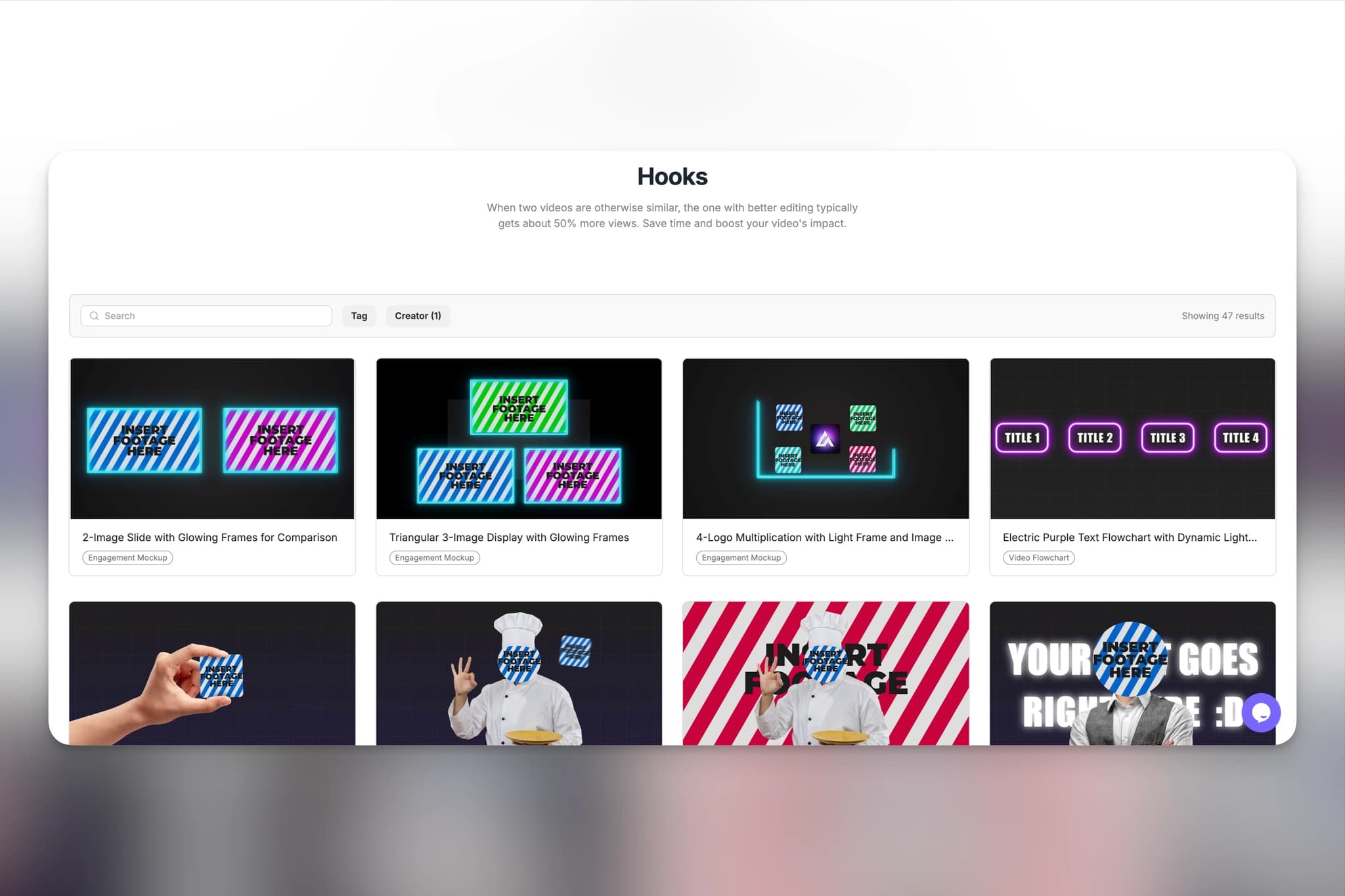
The first step is to browse All Templates and pick a template that fits your video style.
Go to the All Templates page and explore the available motion templates. Once you find one you like, click on it to open the detail page and learn more about that specific design.
Explore the Template Details Before You Edit
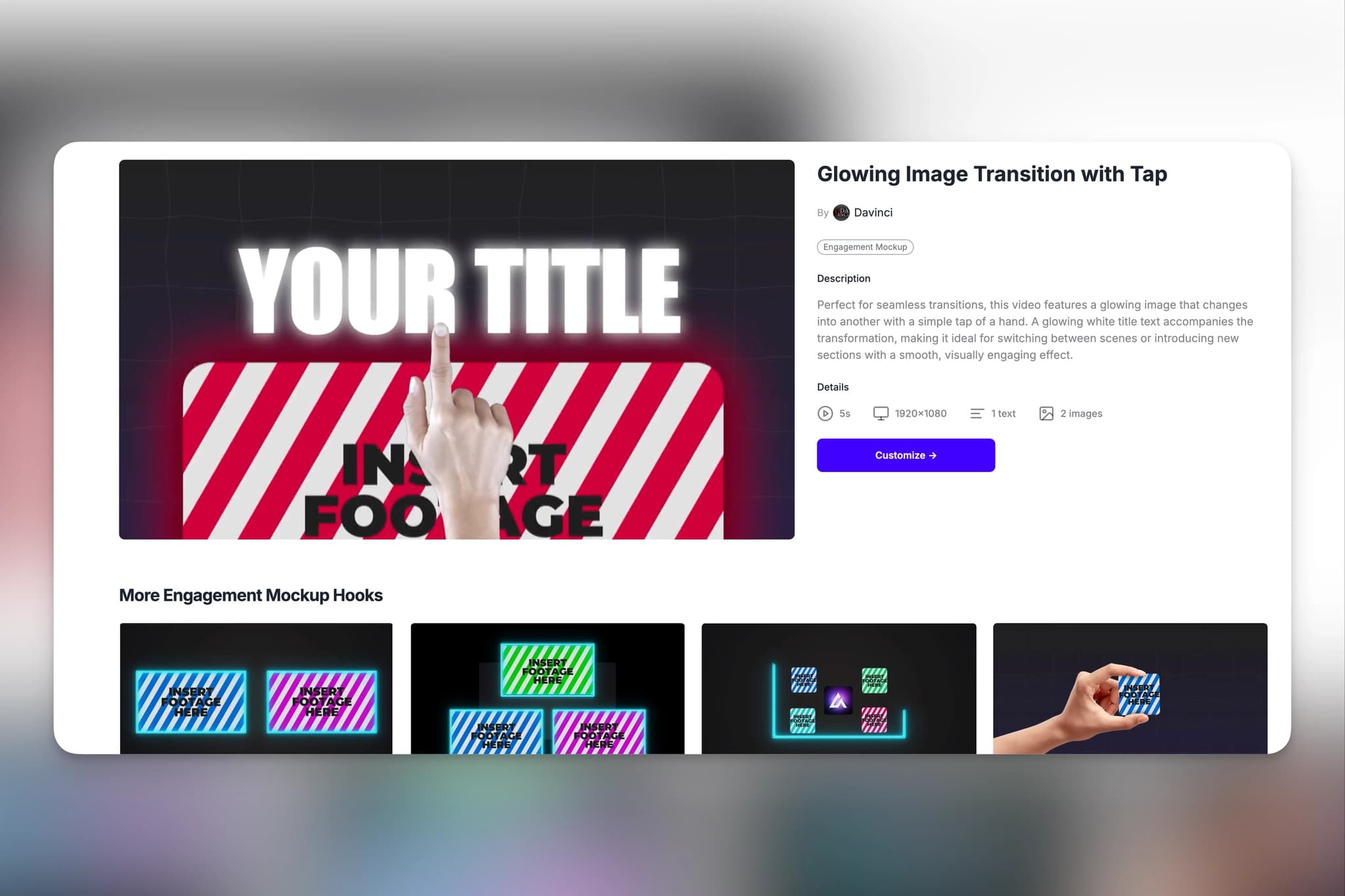
On the detail page, you can preview how the template looks in action.
You will also see the template description, related examples, and similar styles that may fit your project. When you are ready to make it your own, click Customize to enter the editing page.
Customize Your Template Online
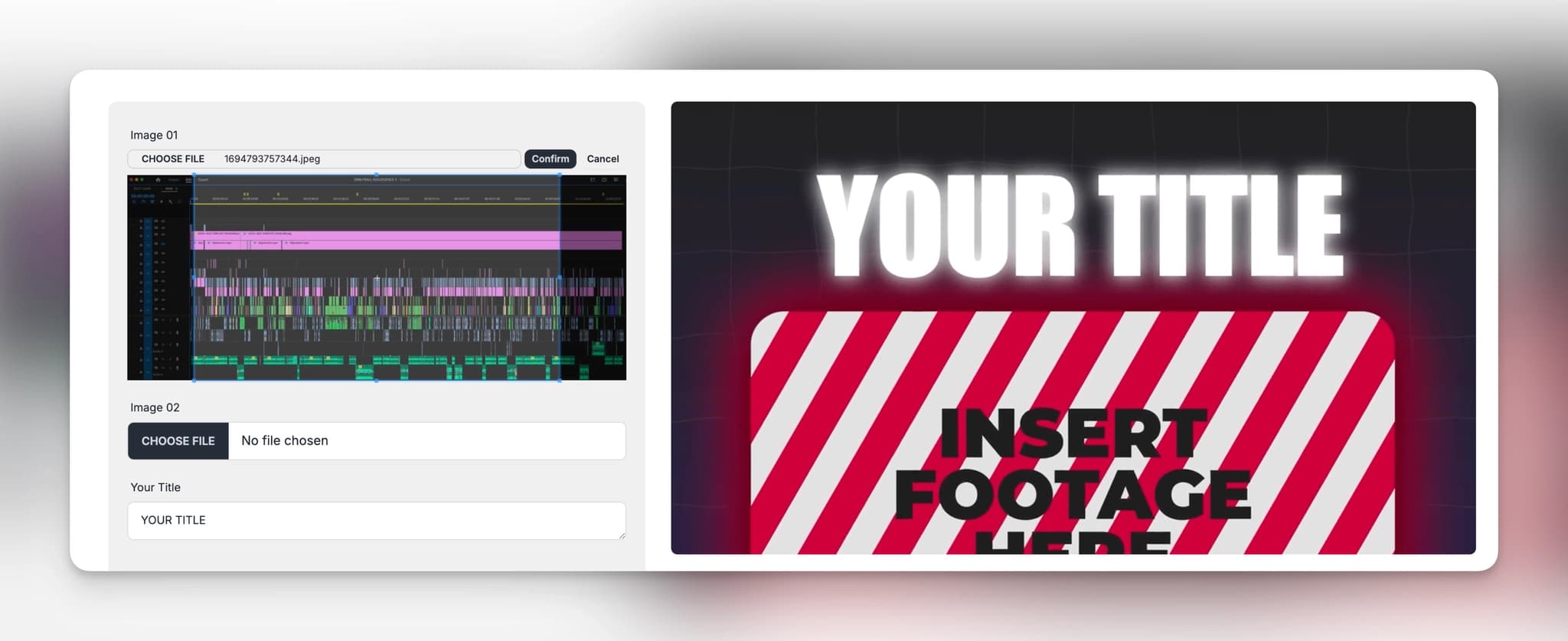
Once you enter the editing page, you can quickly personalize the template to match your own content.
Replace Images
Click Choose File to upload an image from your computer. You can resize and adjust the image directly online, then click Confirm once everything looks right.
Edit the Text
Enter the text you want to display in the animation. The input fields are arranged in the same order as they appear in the template, making it easier to edit each part correctly.
Preview the Result and Download Your Template
After customizing your template, click Preview Video to check the final look.
If you want to make changes, you can go back and adjust the content before downloading. Once you are happy with the result, click Download Video.
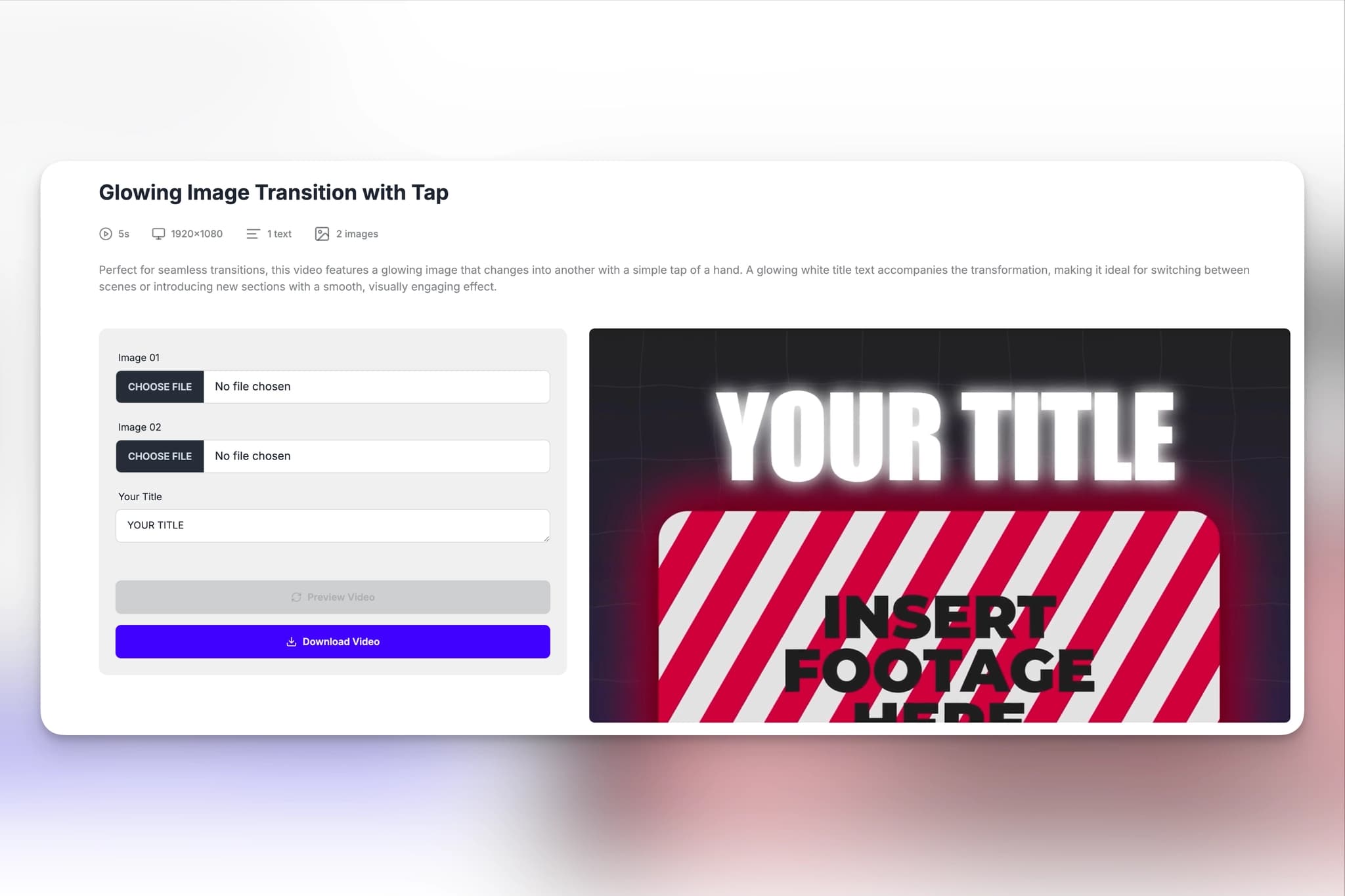
Download Options
- Free Version
Free users can download up to 5 videos in total with the free version. These videos are exported in 720p, include a watermark, and are not licensed for commercial use.
- Paid Version
Any videos you create during your active paid subscription can continue to be used afterward. Paid downloads are available without watermark and can be used for commercial purposes without additional copyright restrictions.
For more detailed information about usage rights, download limits, and plan options, please check our Pricing page.
Add the Template to Any Editing Workflow
Once your animation template is downloaded, you can directly add it to your own video project.
It does not matter which editing software you use. AutoAE templates can be easily inserted into your workflow, helping you create more dynamic and eye-catching content with minimal effort.
Why Creators Use AutoAE Templates
AutoAE is built for creators who want fast, stylish, and professional-looking motion graphic videos without complicated editing steps.
Whether you are making YouTube videos, short-form content, product showcases, or social media ads, AutoAE helps you create viral-style animation templates quickly and use them in any editing tool you prefer.