AI Tools Analysis
DaVinci Resolve AI: 7 Features That Save Editing Time (2026)
March 31, 2026
Selina ZFocused on in-depth research in AI tools, AI video, and generative AI.
Still editing till 3 AM? Discover the ultimate 2026 DaVinci Resolve AI workflow. Learn how to use Voice Isolation, Magic Mask, and our secret weapon for instant motion graphics to cut your editing time in half.
|
Tool / Feature
|
Category
|
Best For
|
Key Benefit
|
Pricing
|
|
Voice Isolation
|
AI Audio Cleanup
|
Noisy dialogue
|
Removes background noise in one click
|
Included in DaVinci Resolve Studio ($295 one-time)
|
|
AI Audio Remixer
|
Audio Rebalancing
|
Mixed music tracks
|
Separates vocals & instruments automatically
|
Studio ($295 one-time)
|
|
AI Subtitle Generation
|
Speech-to-Text
|
Talking-head / interviews
|
Auto-generate editable subtitles
|
Studio
|
|
Magic Mask AI
|
Object Tracking
|
Complex masking
|
Smart object/people tracking in seconds
|
Studio
|
|
AI Multiswitch
|
Multi-Cam Editing
|
Interviews / podcasts
|
Auto-detect speaker & cut cameras
|
Studio
|
|
AI Beat Markers
|
Rhythm Detection
|
Music-driven edits
|
Auto-detect beat markers for faster cuts
|
Free + Studio
|
|
AI Motion Graphics
|
Fast animated titles
|
Generate animated AE assets instantly
|
Subscription-based
| |
|
Colorlab AI
|
AI Color Grading
|
Fast cinematic grading
|
look matching & shot balancing
|
$49+
|
|
Topaz Video AI
|
AI Enhancement
|
Upscaling / restoration
|
AI upscaling & noise reduction
|
$33~69$
|
The Post-Production Bottleneck
Even with insanely fast hardware in 2026, video editors are still staying up until 3 AM. Why? Because we are still wasting our lives on manual rotoscoping, audio syncing, and keyframing
The Neural Engine built into DaVinci Resolve Studio isn't just a marketing gimmick. It is a literal time accelerator. Instead of giving you a boring technical manual, this guide breaks down the top 7 AI tools with the highest Return on Investment (ROI) in real-world commercial projects.
We will explore how to use native tools like Voice Isolation and Magic Mask, along with secret weapons for instant motion graphics, to cut your editing time in half. Let’s look at the "Old Workflow" versus the "AI Workflow," and see exactly how many hours you can shave off your next project.
The True Cost: Free vs. Studio vs. External AI
Unlike Adobe Premiere Pro, which requires a monthly subscription, or After Effects, where you have to buy individual third-party plugins, DaVinci Resolve has a completely different pricing model
The ROI (Why it's worth it): The advanced native AI tools mentioned in this guide require heavy GPU processing and are locked behind the paid Studio version. However, there are no monthly subscriptions, and Blackmagic Design traditionally includes all future major software updates for free.
If you are a hobbyist, the free version of DaVinci Resolve is incredible. But if you edit a video for a living, spending $295 once to unlock tools like Voice Isolation, Magic Mask, and Auto-Transcription will literally pay for itself in billable hours within your first week
Voice Isolation
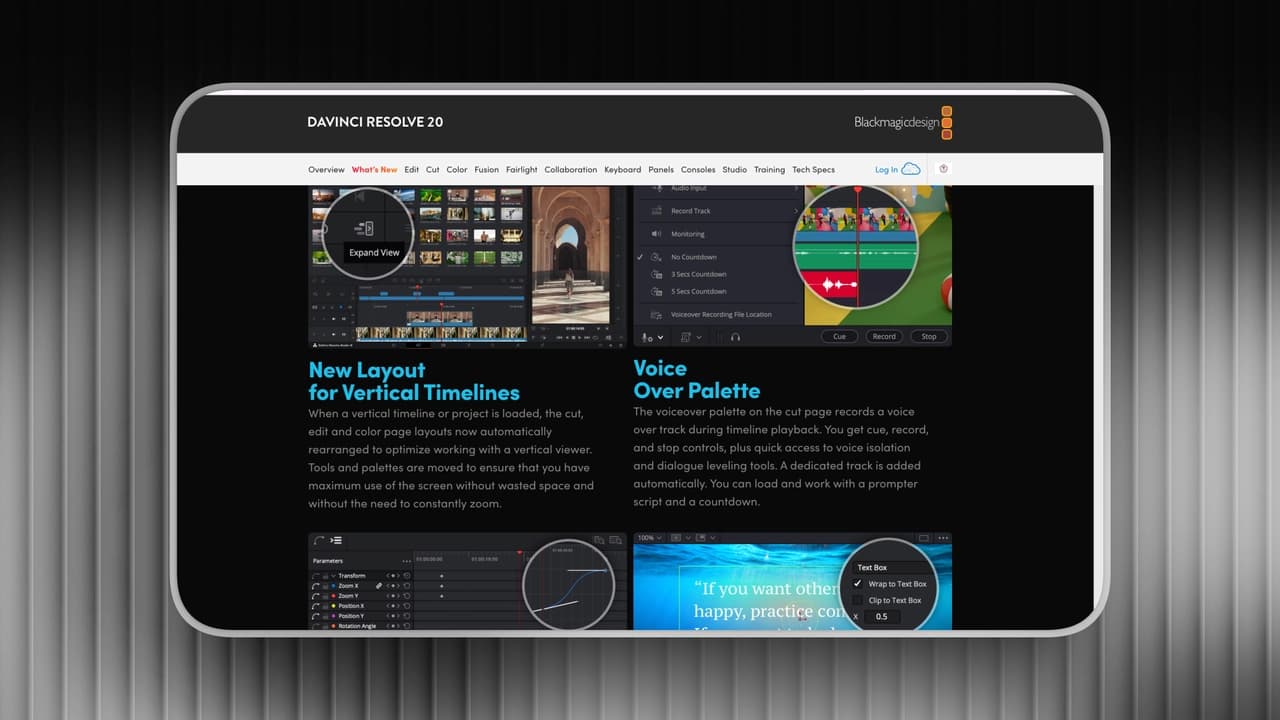
Background noise is one of the most common issues in creator workflows. Whether it's air conditioning hum, room echo, or café chatter, cleaning dialogue traditionally requires manual EQ adjustments or external audio tools.
Voice isolation simplifies that process. Instead of layering multiple audio effects, it allows you to reduce background noise with a single control, making dialogue clearer in seconds rather than minutes.
Key Features
-
dialogue isolation from background noise
-
Adjustable strength slider for fine control
-
Works directly inside the timeline (no round-trip export)
-
Real-time preview before rendering
Pros
-
Replaces basic manual EQ and noise reduction for most creator content
-
Extremely fast for interviews, YouTube videos, and online courses
-
No need for external audio tools in standard scenarios
-
Beginner-friendly, no audio engineering knowledge required
Cons
-
Can introduce artifacts at very high strength settings
-
Less effective in extremely noisy outdoor recordings
-
Not suitable for cinematic-level sound design or complex multi-track mixing
Best For
-
Talking-head YouTube creators
-
Podcast-style video editors
-
Fast-turnaround content teams
-
Creators who want clean dialogue without deep audio workflows
Pro Tip for Editors:
Don't crank the isolation slider straight to 100%. Pushing the AI too hard can introduce "underwater" robotic artifacts to your dialogue. The sweet spot for commercial audio is usually keeping the strength between 40% to 60%, paired with a basic EQ curve to bring back the natural low-end frequencies of the human voice.
AI Audio Remixer
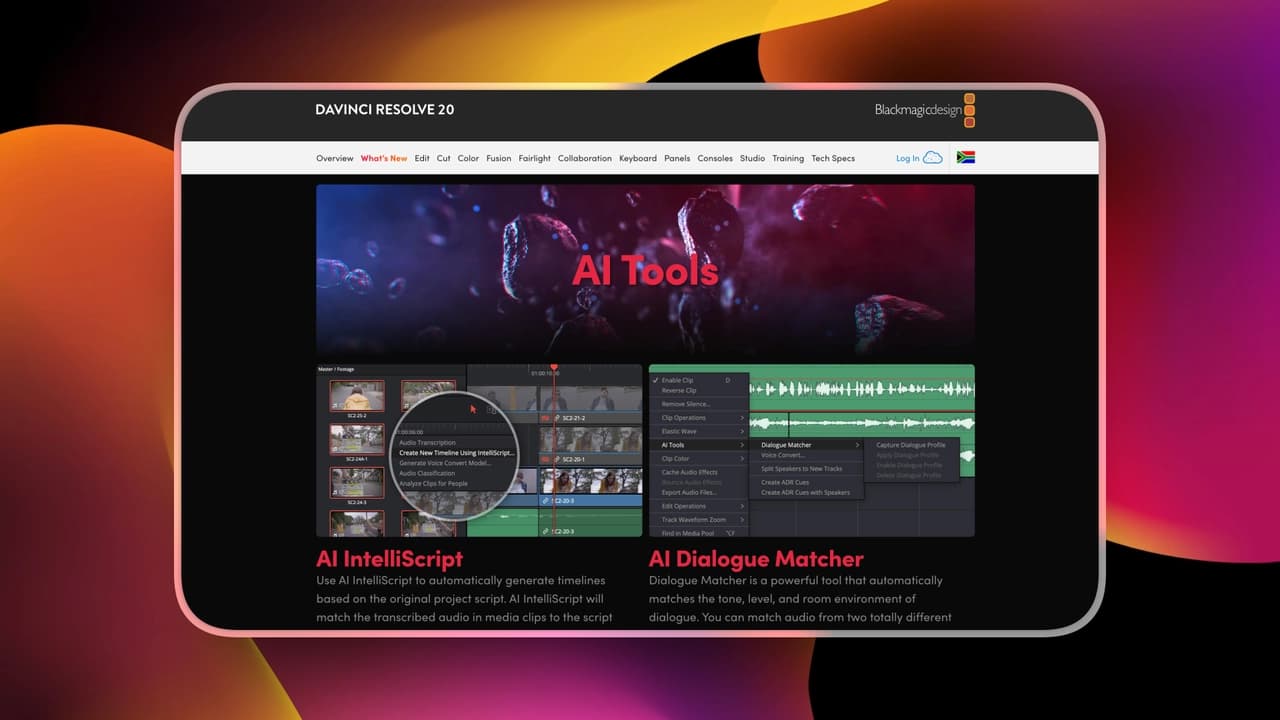
Balancing music and dialogue is more time-consuming than it looks. When background tracks overpower speech, editors usually rely on manual keyframes or detailed mixing adjustments.
AI Audio Remixer automates that process. It intelligently rebalances audio layers, helping dialogue stay clear without requiring manual volume automation.
Key Features
-
Automatically rebalances dialogue, music, and background audio
-
Adjusts music levels dynamically under speech
-
Works directly inside the edit without exporting stems
-
Fast preset-style workflow for quick adjustments
Pros
-
Saves time when background music overpowers dialogue
-
Reduces the need for manual keyframing audio levels
-
Useful for quick content turnaround (Shorts, social clips, tutorials)
-
Beginner-friendly alternative to detailed audio mixing
Cons
-
Less precise than manual keyframe automation
-
Not ideal for complex cinematic or multi-layer sound design
-
May require minor manual tweaks in dense audio environments
Best For
-
YouTube creators with background music-heavy edits
-
Social media editors produce fast content
-
Small teams without a dedicated audio engineer
Subtitle Generation
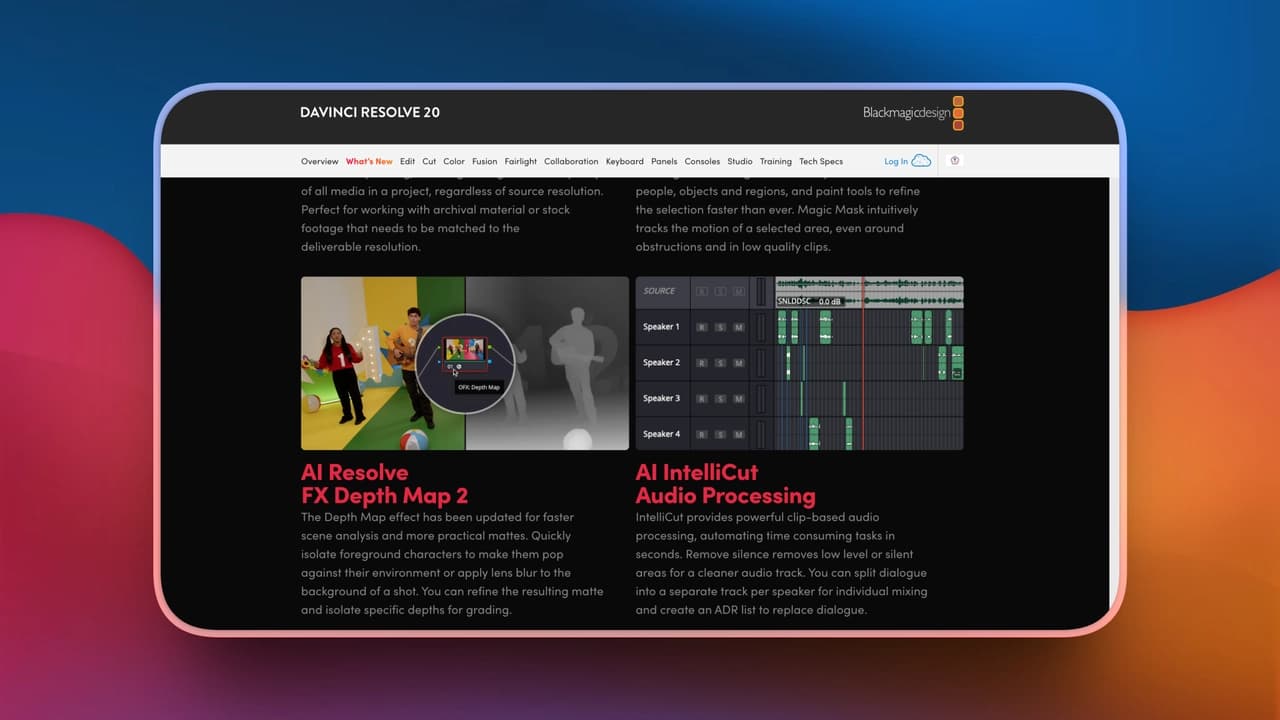
Captions are no longer optional. For YouTube, Shorts, and social platforms, subtitles increase retention and accessibility, but manually typing them can take hours.
Subtitle Generation converts speech to text directly inside the timeline, dramatically reducing the time required to produce accurate, synced captions.
Key Features
-
Automatic speech-to-text transcription
-
Timeline-synced subtitle generation
-
Editable captions directly in the software
-
Supports multiple languages (depending on project setup)
Pros
-
Eliminates manual subtitle typing
-
Speeds up long-form interview editing
-
Enables text-based editing workflows
-
Essential for social platforms where captions increase retention
Cons
-
May require corrections for accents or unclear speech
-
Formatting still needs manual refinement for stylized captions
-
Not a replacement for high-end motion subtitle design
Best For
-
Long-form YouTube interviews
-
Educational creators
-
Repurposing podcasts into social clips
-
Teams working with accessibility requirements
Magic Mask AI
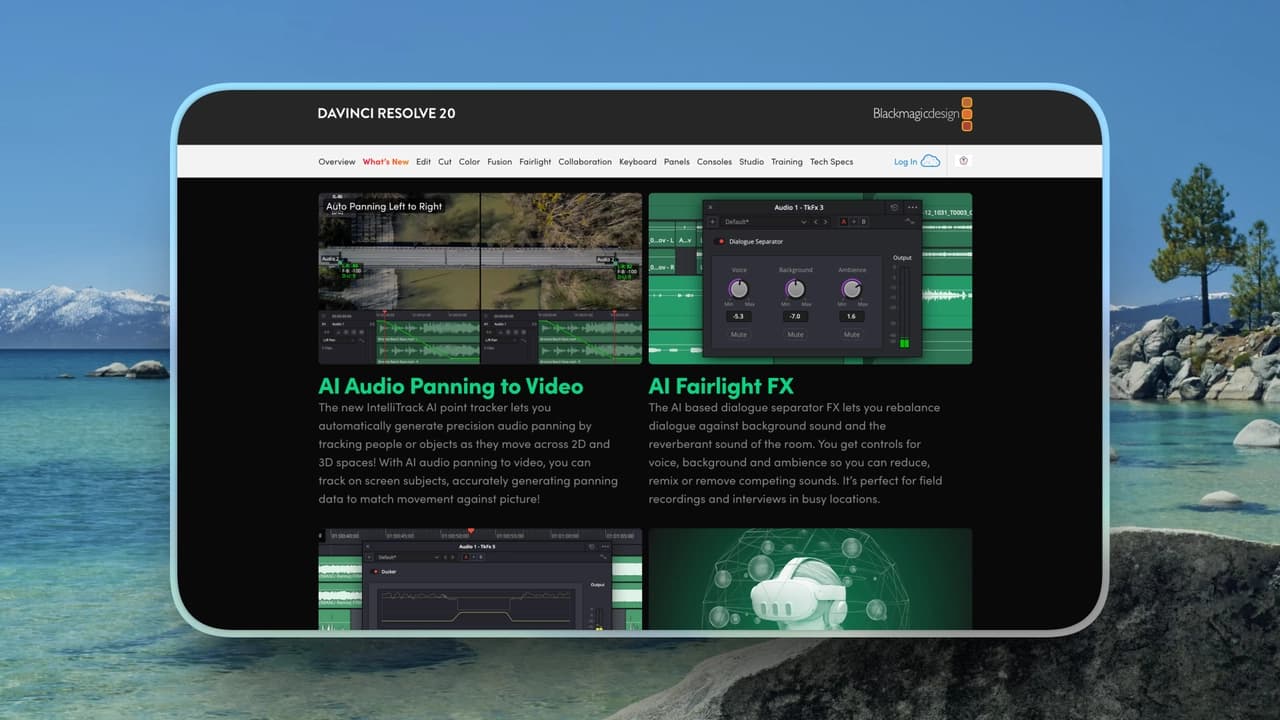
Object isolation and subject tracking are traditionally some of the most labor-intensive tasks in post-production. Manual masking and tracking can quickly turn into frame-by-frame adjustments.
Magic Mask AI uses object recognition to automate much of that work, allowing editors to isolate subjects or apply targeted effects significantly faster.
Key Features
-
object and person tracking
-
Automatic mask generation and tracking
-
Works inside the Color page
-
Frame-to-frame tracking refinement
Pros
-
Replaces manual rotoscoping in many scenarios
-
Dramatically speeds up object isolation
-
Useful for background blur, color isolation, and subject highlighting
-
Strong time-saver for commercial or stylized edits
Cons
-
Struggles with low-contrast edges or fast motion
-
Requires Studio version
-
Still needs manual correction in complex scenes
Best For
-
Commercial editors
-
Creators doing stylized subject isolation
-
Projects requiring fast object tracking without manual masking
Pro Workflow Warning:
Magic Mask is incredibly powerful, but it eats GPU VRAM for breakfast. Never apply Magic Mask at the beginning of your edit. The correct workflow is: achieve your "Picture Lock" (final cut) first -> apply the Magic Mask in the Color page -> and immediately turn on "Smart Render Cache" (or bounce the node). This ensures your timeline stays buttery smooth and doesn't crash during playback.
AI Multiswitch
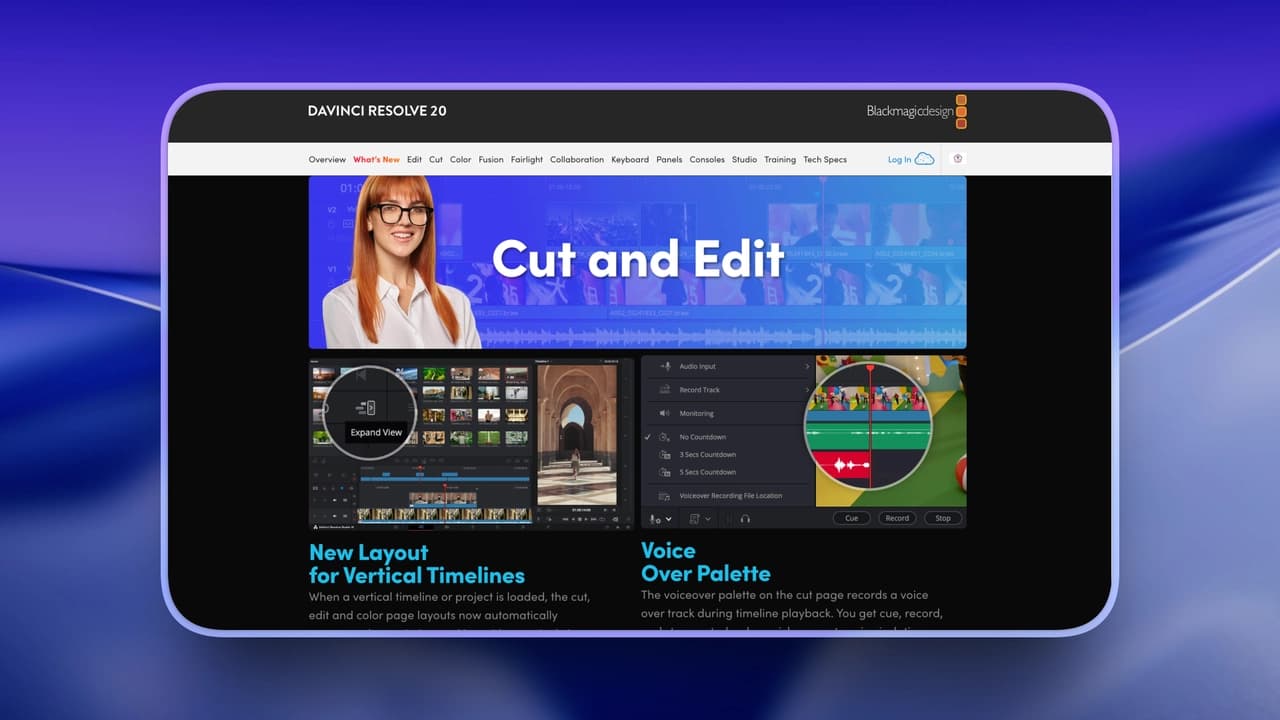
Editing multi-camera interviews or podcasts often involves constant angle switching based on who is speaking. Doing this manually can take longer than the initial rough cut.
AI Multiswitch analyzes audio activity and automatically switches camera angles, creating a structured first pass in a fraction of the usual time.
Key Features
-
Automatically detects active speakers in multi-camera setups
-
Switches between camera angles based on voice detection
-
Timeline-based automatic cut generation
-
Works well with synced multi-cam interviews
Pros
-
Saves hours in podcast or interview editing
-
Reduces manual camera switching in dialogue-heavy content
-
Speeds up rough cuts significantly
-
Ideal for structured, speaker-based formats
Cons
-
Less effective when multiple people talk simultaneously
-
May require manual refinement for pacing and storytelling
-
Not suitable for cinematic or highly stylized edits
Best For
-
Podcast video editors
-
Interview-based YouTube channels
-
Educational panels and webinars
-
Small teams handling multi-cam content
Real-World ROI:
For a standard 3-camera, 1-hour podcast, traditional manual multicam syncing and cutting take roughly 2.5 hours. By using the AI Multiswitch to generate the rough cut based on audio waveforms, that initial pass drops to about 5 minutes of processing time, leaving you to only spend 20 minutes tweaking the final comedic timing.
AI Beat Markers
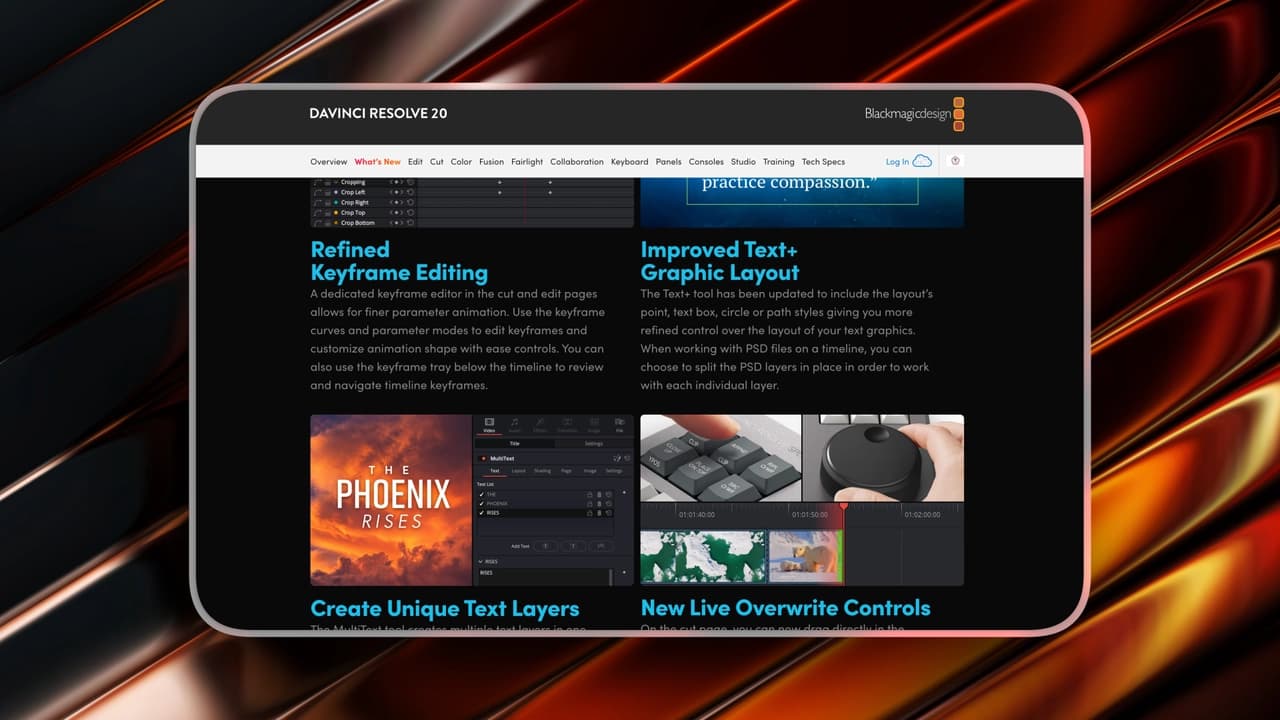
Music-driven edits rely heavily on timing. Manually placing markers on beats requires listening through tracks repeatedly and tapping out rhythm cues.
AI Beat Markers detect rhythm automatically, placing timeline markers so editors can focus on creative cuts rather than manual timing setup.
Key Features
-
Automatically detects beats in music tracks
-
Generates timeline markers based on rhythm
-
Speeds up montage and short-form editing
-
Works directly inside the timeline
Pros
-
Eliminates manual beat tapping and waveform guessing
-
Great for reels, trailers, and short-form content
-
Speeds up music-driven edits dramatically
-
Helps beginners create rhythmically clean cuts
Cons
-
Not perfect for complex or subtle musical structures
-
Still requires creative judgment for final pacing
-
Less useful for dialogue-driven projects
Best For
-
Shorts and TikTok creators
-
Montage-heavy edits
-
Trailer and highlight editors
-
Social-first content teams
Colorlab AI
So far, we’ve focused on AI tools built directly into DaVinci Resolve, automating audio cleanup, subtitles, camera switching, and masking.
But color grading is still one of the most time-consuming parts of post-production.
Even with Resolve’s powerful color page, matching shots and building a consistent look across a timeline can take hours.
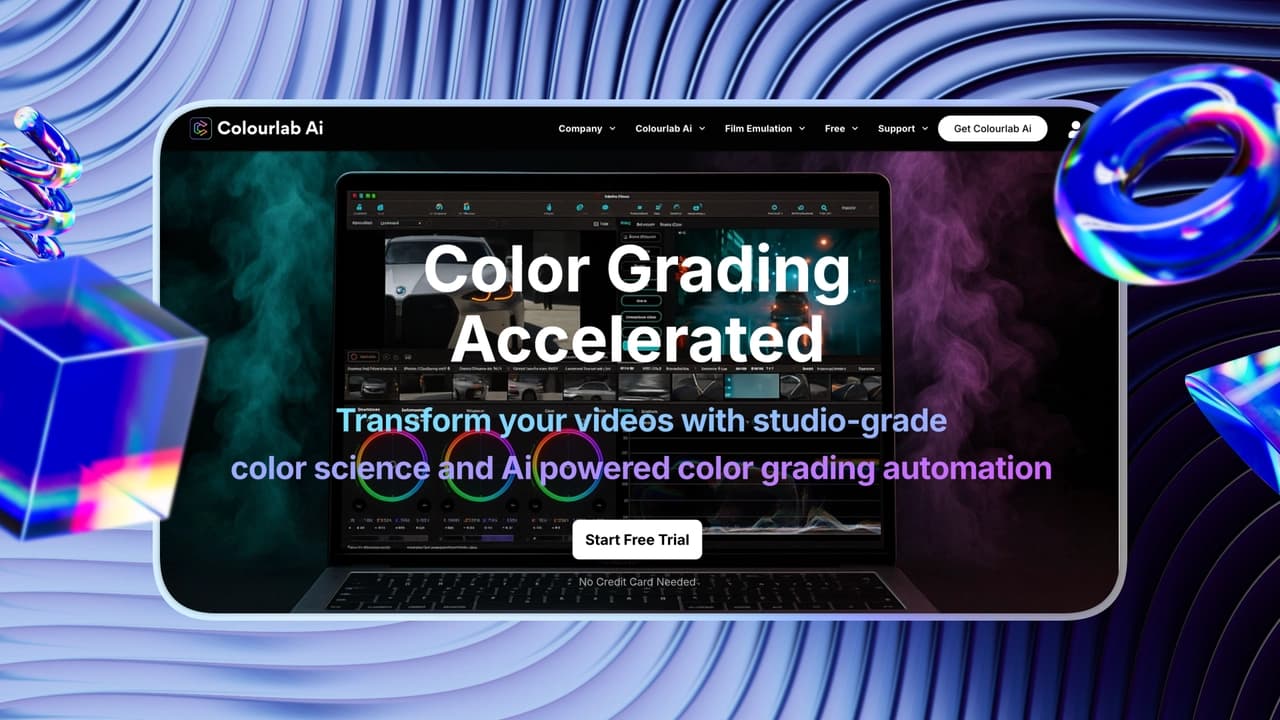
Colorlab AI approaches this differently. While not built into Resolve, it integrates with professional grading workflows and automates shot matching and base correction, reducing technical adjustments so you can focus on creative refinement.
Key Features
-
One-Click Balance (Technical Pass): Automatically analyzes all clips on your timeline to neutralize and match exposure, white balance, and temperature across different cameras.
-
Smooth "Fetch & Push" Workflow: No need to export or import XMLs. Simply click "Fetch from Resolve" to read the timeline, and "Push to Resolve" to send the grading data back.
-
Custom Node Tree Integration: It doesn't just slap a single LUT on your footage. It can map its AI color data perfectly into your preferred, complex node structure (e.g., separating IDT, CDL, LUT, and ODT nodes).
Pros
-
Saves Hours on the "First Pass": Completely eliminates the tedious manual labor of balancing mismatched shots (like mixing Sony, DJI, and iPhone footage).
-
100% Non-Destructive Editability: It pushes actual, tweakable parameters (like Lift, Gamma, and Gain dial adjustments) back into your Resolve nodes, allowing you to refine the grade further.
-
Pro-Level Color Management: Fully supports professional cinema camera color spaces, such as ARRI Log C and ARRI Wide Gamut.
Cons
-
Requires Studio Version: Colorlab AI relies on Resolve's "External Scripting" feature, which is only available in the paid DaVinci Resolve Studio version.
-
Setup Complexity: You must manually disable "DaVinci Color Management" and set your color science to "DaVinci YRGB" for the integration to work, which can be confusing for absolute beginners.
Pricing:
-
Pro ~29$
-
Creator ~49$
AutoAE
Let’s be completely honest: DaVinci Resolve is a powerhouse for color grading and audio editing, but its built-in motion graphics engine (Fusion) has a notoriously steep learning curve. If you are a short-form creator or a fast-turnaround editor, building complex motion graphics or hook animations from scratch in Fusion will kill your momentum.
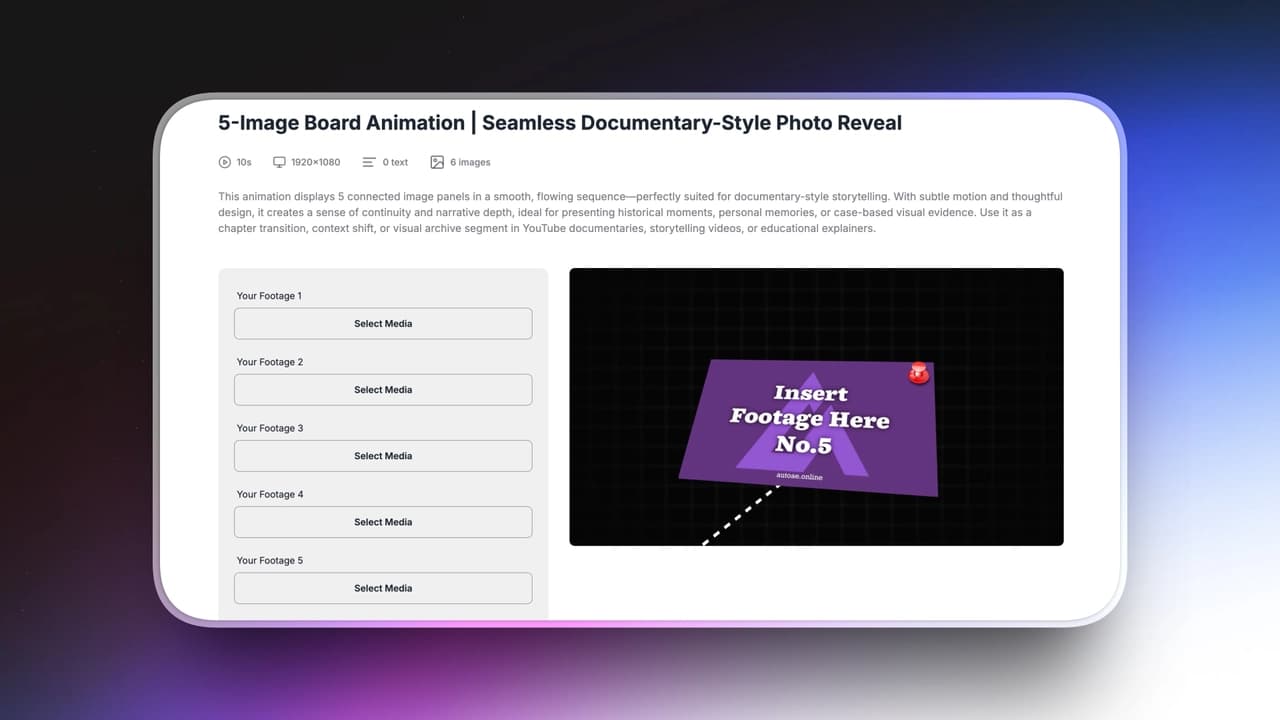
This is where the 7th tool comes in. Not every time-saving workflow happens inside the DaVinci timeline. AutoAE solves Resolve’s biggest bottleneck by generating ready-to-use, professional motion graphic snippets entirely via AI. Instead of spending 2 hours connecting Fusion nodes, you simply generate the animation in AutoAE, export the transparent asset, and drop it straight onto your DaVinci timeline.
Key Features
-
Generates ready-to-use motion graphics snippets
-
Reduces manual animation building
-
Designed for fast content workflows
-
No deep After Effects knowledge required
Pricing
|
Plan
|
Price
|
Best for
|
|
Free
|
$0
|
Trying the platform or very small tests
|
|
Starter
|
$12 / month
|
Beginners or small projects
|
|
Creator
|
$39 / month
|
Regular content creators
|
|
Agency
|
$99 / month
|
Teams and agencies
|
|
Scale
|
$299 / month
|
High-volume or enterprise use
|
|
Single Video
|
$2.90 / video
|
Occasional one-off animations
|
Pros
-
Skips hours of manual motion design
-
Ideal for hook animations and social intros
-
Lowers technical barriers for non-motion designers
-
Useful for creators who prioritize output speed
Cons
-
Not a full replacement for custom motion design
-
Less suitable for highly complex, bespoke animation systems
-
Depends on workflow integration with editing tools
Best For
-
Short-form creators
-
Editors without advanced motion skills
-
Small teams prioritizing turnaround time
-
Creators who want motion upgrades without AE complexity
Topaz Video AI
Most AI features inside editing software, focus on workflow speed, cutting faster, masking faster, mixing faster.
But what about footage quality itself?
When you’re dealing with noisy clips, low-light recordings, compression artifacts, or older footage, no amount of timeline automation will fix the underlying image.
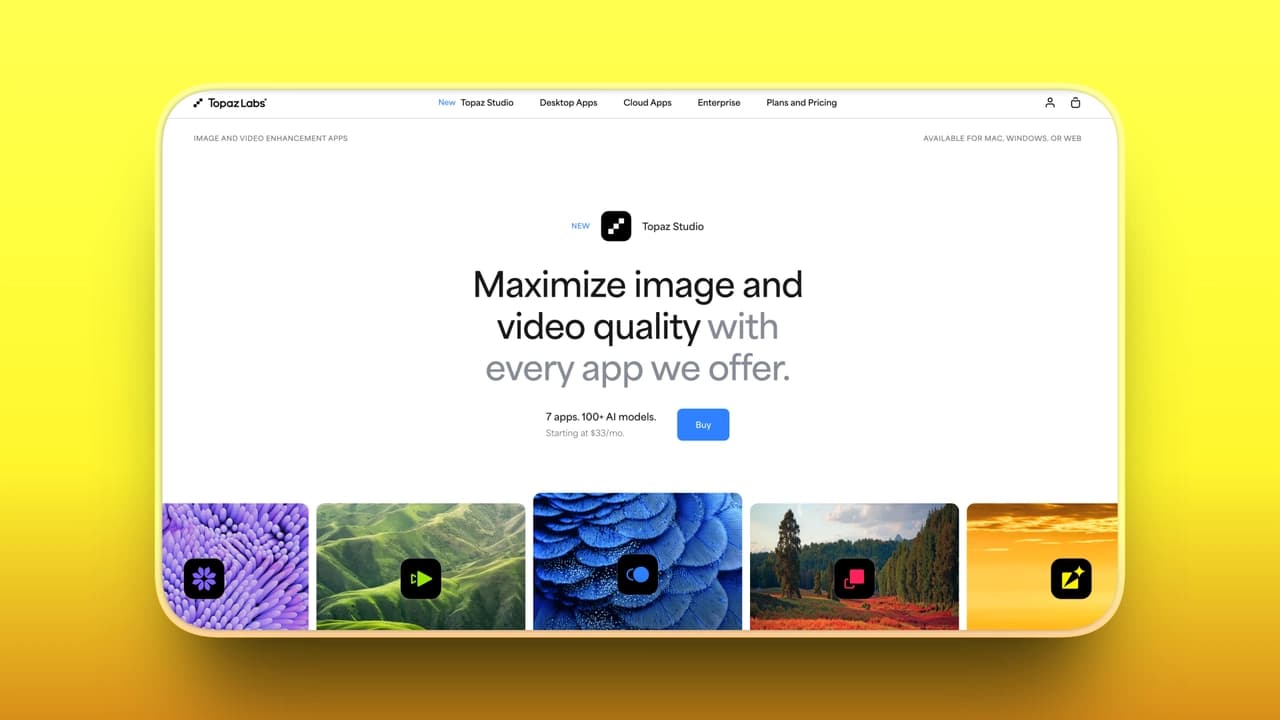
That’s where Topaz Studio comes in.
Unlike built-in editing AI, Topaz focuses on visual enhancement, upscaling resolution, reducing noise, and restoring detail. Instead of speeding up editing steps, it improves the source material itself, often saving time that would otherwise be spent trying to “fix it in post” manually.
Key Features:
-
AI upscaling (e.g., 2x scale up to 8K) using models like Proteus.
-
Customizable frame rates and slow-motion generation.
-
"Recover Detail" threshold to blend original source details with AI enhancements.
-
Video stabilization tools, including fixes for jittery motion and rolling shutter.
Pros:
-
Highly flexible output with custom resolutions and framerates.
-
Convenient UI for comparing original vs. enhanced footage (click-and-hold toggle).
-
Can rescue very low-quality footage and scale it to modern standards (like 8K H.265).
Cons:
-
Extremely resource-heavy; may require manually lowering the "Max Memory" preference to prevent system crashes.
-
Codec limitations can cause export errors (e.g., trying to export 8K using H.264 instead of H.265).
Pricing
-
Annual
-
Topaz Studio 33$/mo
-
Topaz Studio pro 67$/mo
-
-
Monthly
-
Topaz Studio 69$/mo
-
Quick Recommendation by Creator Type
|
Creator Type
|
Primary Goal
|
Core Recommendation
|
Add If Needed
|
Why This Stack Works
|
|
A. Shorts / TikTok Creators
|
Speed & Output Volume
|
AI Beat Markers + Voice Isolation
|
AutoAE
|
Fast cuts + clean audio = higher retention. AutoAE speeds up title & motion production.
|
|
B. YouTube Long-Form Teams
|
Workflow Structure & Quality
|
AI Multiswitch + Magic Mask + Subtitle Generation
|
Colorlab AI
|
Automates camera switching, tracking, and captions. Add Colorlab for faster consistent grading.
|
|
C. Designers / Motion Artists
|
Control & Precision
|
Magic Mask + Colorlab AI
|
AutoAE
|
Advanced masking + intelligent grading. AutoAE helps accelerate motion asset creation when needed.
|
|
D. Small Teams / Solo Creators
|
Budget & ROI Efficiency
|
Free Version + AI Beat Markers
|
Studio Upgrade (when scaling)
|
Start free. Upgrade only when AI automation offsets time cost. Keeps ROI healthy.
|
Conclusion: Work Smarter, Not Harder
AI won’t replace editing judgment, but it absolutely replaces repetitive labor. The smartest creators don’t use every AI feature. They use the ones that remove friction from their specific workflow. Stop fighting your timeline and let the Neural Engine (and smart external tools) do heavy lifting. If most of that friction is motion graphics rather than color or audio, the Motion Agent category is where that job now lives.💪