AI Tools Analysis
Top 8 After Effects Time-Savers (Tools + Plugins + Workflows)
June 9, 2026
Selina ZFocused on in-depth research in AI tools, AI video, and generative AI.
Save 1000 Hours in Post-Production: 8 Must-Have After Effects Plugins for Motion Designers
Still manually tweaking Bezier curves and digging through layers for effects? We reviewed 8 top After Effects plugins like FX Console, Flow, and Overlord. Discover real-world workflows to eliminate pointless overtime and 10x your editing efficiency.
Quick Comparison Overview
|
Tool
|
Category
|
Best For
|
Key Benefit
|
Pricing
|
|
Effect Search & Utility
|
High-frequency effect users
|
Instant effect search, apply & screenshot export
|
Free
| |
|
Easing Control
|
Precision animation work
|
Visual bezier editor with reusable curve library
|
$35 (one-time)
| |
|
Workflow Utility Panel
|
General workflow acceleration
|
150+ utilities inside one customizable panel
|
Free to $149
| |
|
Animation Toolkit
|
Fast motion presets
|
Overshoot, bounce, anchor & alignment tools
|
$13 to $16
| |
|
Motion Snippet Workflow
|
Short-form creators & time-saving designers
|
Generate ready-to-use motion graphics without building in AE
|
Free / $12/mo
| |
|
Easing Script
|
Advanced motion designers
|
One-click complex easing expressions
|
$24.99
| |
|
AI ⇄ AE Bridge
|
Illustrator-heavy workflows
|
Direct vector transfer without exporting
|
$75
| |
|
Project Management
|
Version-heavy projects
|
Safely duplicate full comp hierarchies
|
$24.99
| |
|
Rigging Toolkit
|
Character animation
|
IK systems & automated rigging tools
|
€10 to €200
|
Why is Your After Effects Workflow So Slow?
If you’ve ever stayed up late tweaking keyframes in After Effects, you know the frustration isn’t always the animation itself. It’s the small things.
Searching for effects. Fixing anchor points. Adjusting easing curves again. Duplicating comps one by one.
These tiny steps don’t feel big in the moment, but they quietly eat up hours over time.
As creators, speed matters, but so does control. Whether you’re producing short-form content daily or refining motion details for a long-form project, the real upgrade isn’t just learning new techniques. It’s removing friction from your workflow.
Over time, most experienced motion designers build a personal toolkit: plugins, scripts, and repeatable systems that make After Effects feel lighter and faster.
In this guide, we will help you avoid the rookie mistake of bloating your workspace with heavy scripts. Instead, we’ll walk through the tools that actually save time, not by replacing creativity, but by clearing the path for it
FX Console
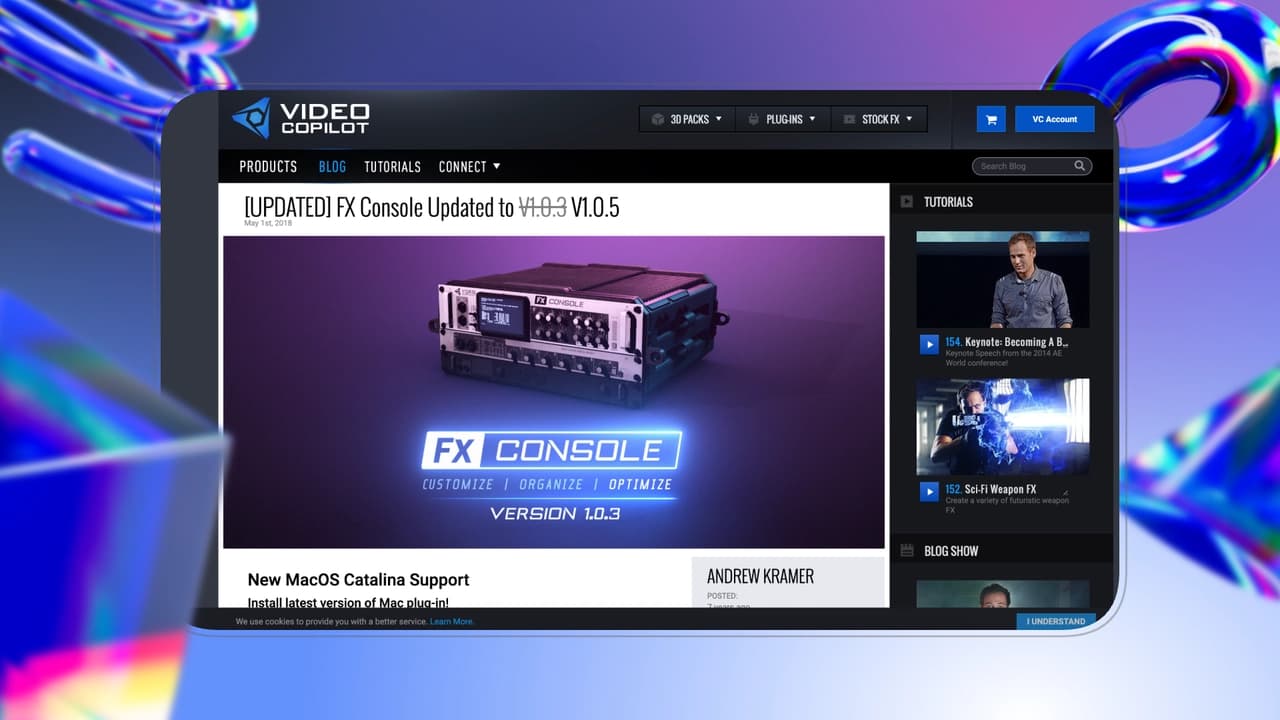
Developed by Video Copilot, FX Console is a workflow enhancement plugin that streamlines one of the most repetitive parts of motion design: searching for and applying effects.
Instead of navigating through the clunky default Effects & Presets panel, FX Console provides an instant, spotlight-style search popup. Simply select your layer, hit the shortcut key (Control + Space by default), type the effect name (like "Gaussian Blur" or "Curves"), and press Enter. The effect is applied immediately.
Key feature
-
Faster Effect Application Frequently used effects such as blur, glow, or shadows can be applied almost instantly.
-
Reduced Context Switching Designers no longer need to move between panels, which helps maintain creative flow.
-
Compounded Time Savings Saving just a few seconds per action can translate into significant time saved across large projects.
FX Console doesn’t change how animations are created. It simply makes working inside After Effects faster and smoother.
How to Use It in After Effects
-
Select a Layer Choose the layer where you want to apply an effect.
-
Open the Search Bar Press the shortcut key (Control + Space by default) to launch the FX Console popup.
-
Type and Apply Enter the name of the effect and press Enter. The effect is applied immediately to the selected layer.
The entire process happens in seconds, without switching panels or dragging effects manually.
Pricing:
free
Flow
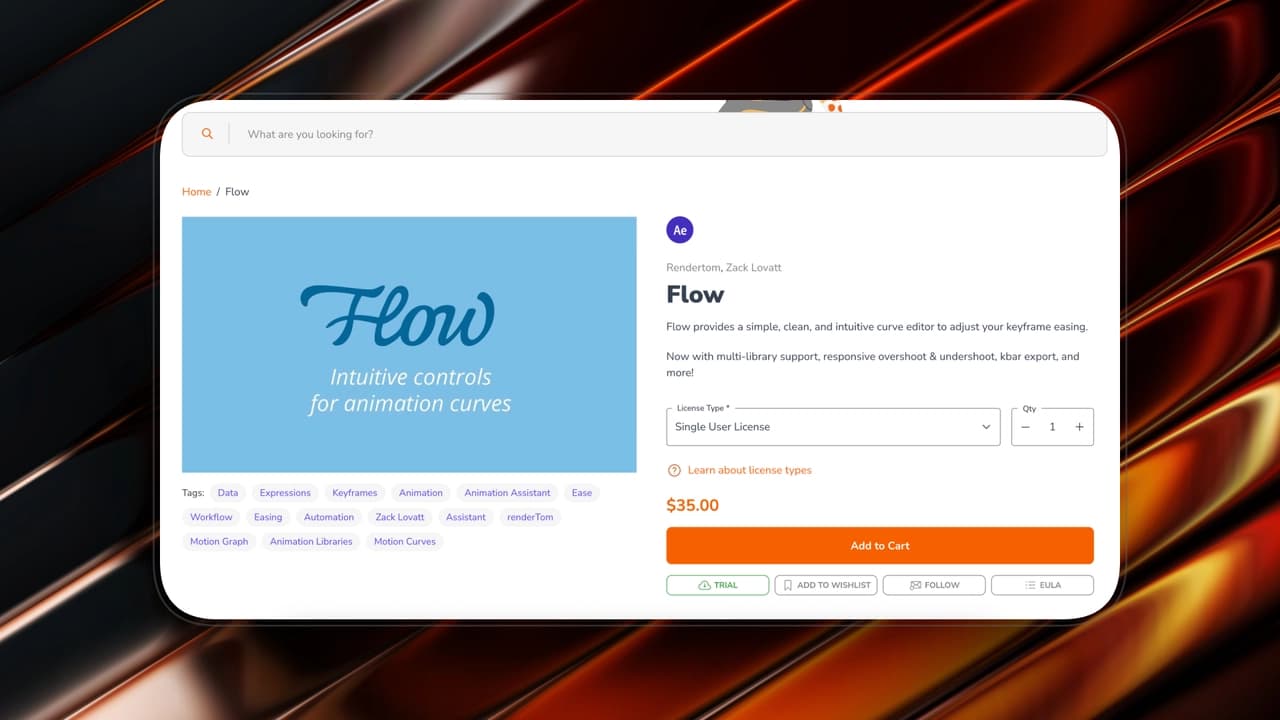
Flow is a keyframe easing and curve management plugin for Adobe After Effects. Instead of manually adjusting velocity handles in the Graph Editor, Flow provides a visual library of easing curves that can be applied instantly to selected keyframes.
It is designed to simplify one of the most time-consuming parts of motion design: fine-tuning animation timing.
Key feature
-
Faster Easing Adjustments No need to manually drag Bezier handles in the Graph Editor for each animation.
-
More Consistent Motion Saved curves ensure a uniform motion language across brand or series work.
-
Reduced Micro-Editing Fine-tuning animation timing becomes a one-click action instead of a repetitive manual process.
Flow doesn’t generate animation for you, it refines it faster. And in motion design, refinement is where most of the time is spent.
How to Use It in After Effects
-
Select Your Keyframes Highlight the keyframes you want to adjust to your timeline.
-
Open the Flow Panel Launch the Flow panel to access its curve presets.
-
Apply a Curve Click on a preset easing curve, and it will instantly apply to the selected keyframes.
Users can also create and save custom curves, making it easy to reuse specific motion styles across multiple projects.
Pricing:
35$
Silky Smooth Motion in One Click: Flow vs. Ease and Wizz
|
Feature
|
Flow
|
Ease and Wizz
|
|
Pricing
|
$35
|
$24.99
|
|
Core Type
|
Curve management plugin
|
Math-based easing script.
|
|
How It Works
|
Provides a visual library of easing curves that can be applied instantly to selected keyframes.
|
Applies preset advanced motion equations (like bounce, elastic, and exponential) via a small UI.
|
|
The Pro Advantage
|
Users can create and save custom curves, making it easy to reuse specific motion styles across multiple projects
|
Handles complex interpolations automatically with a single click, no need to open the Graph Editor or manually adjust velocity handles.
|
|
Best For
|
Precision animation work. Perfect for maintaining a uniform motion language across brand or series work.
|
Advanced motion equations. Ideal for kinetic typography, UI animations, and quick dynamic bounces.
|
MoBar
MoBar is an all-in-one workflow panel for Adobe After Effects. Instead of installing multiple small utility scripts, MoBar centralizes dozens of commonly used tools into a single customizable interface.
It combines animation helpers, layer controls, anchor point tools, easing shortcuts, and project utilities, making it a compact control hub for everyday motion design tasks.
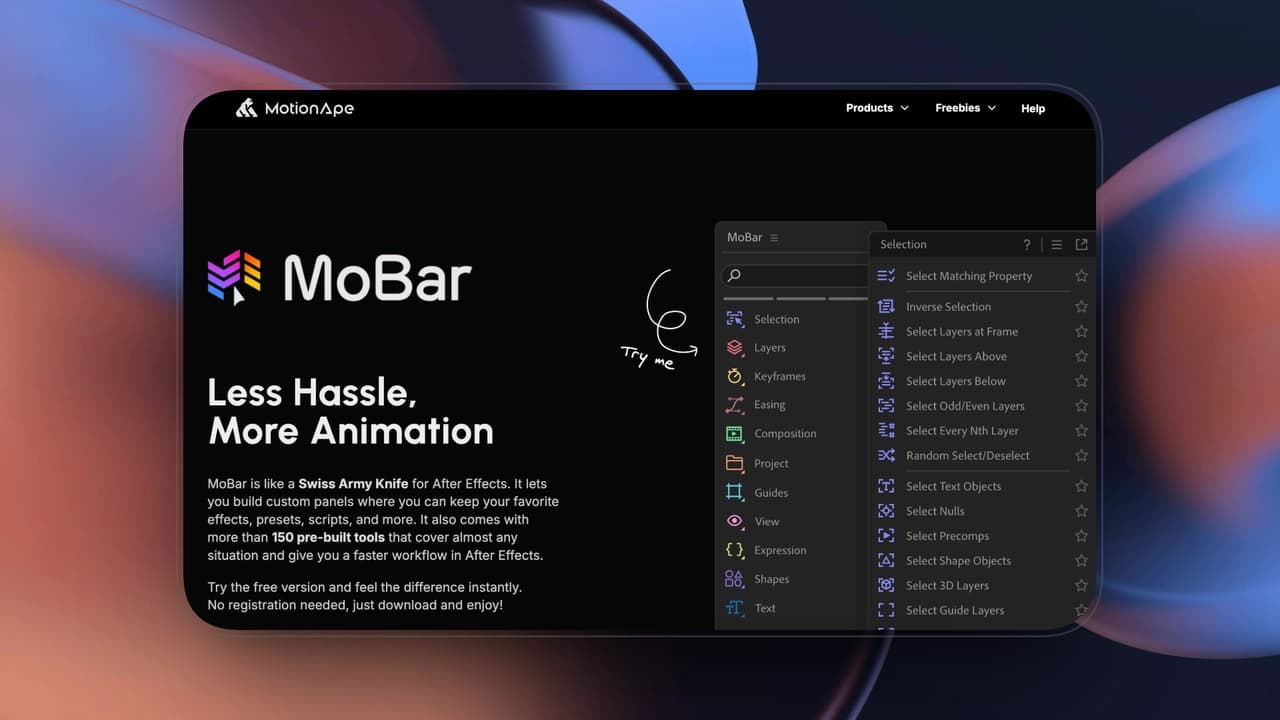
Efficiency Impact
-
Tool Consolidation MoBar reduces plugin clutter by combining many micro-utilities into one interface.
-
Faster Layer & Keyframe Control Common tasks such as anchor repositioning, parenting, or keyframe offsetting become one-click actions.
-
Workflow Standardization Having a fixed utility hub helps maintain consistency across projects and teams.
MoBar doesn’t introduce new animation styles. It accelerates the mechanical steps that surround animation. And in large projects, those mechanical steps consume more time than most designers realize.
How to Use It in After Effects
-
Open the MoBar Panel Launch the MoBar extension from the Extensions menu.
-
Customize Your Layout Users can enable, disable, or rearrange tool sections based on their workflow needs.
-
Apply Tools Instantly With one click, you can center anchor points, create null controllers, copy easing, offset keyframes, or perform alignment adjustments.
Instead of navigating through multiple menus or running different scripts separately, everything is accessible from one structured panel.
Pricing
Free: $0
Monthly: $4.99 / month
Yearly: $29 / year (50% savings)
Lifetime: $149 (one-time payment)
Motion 4
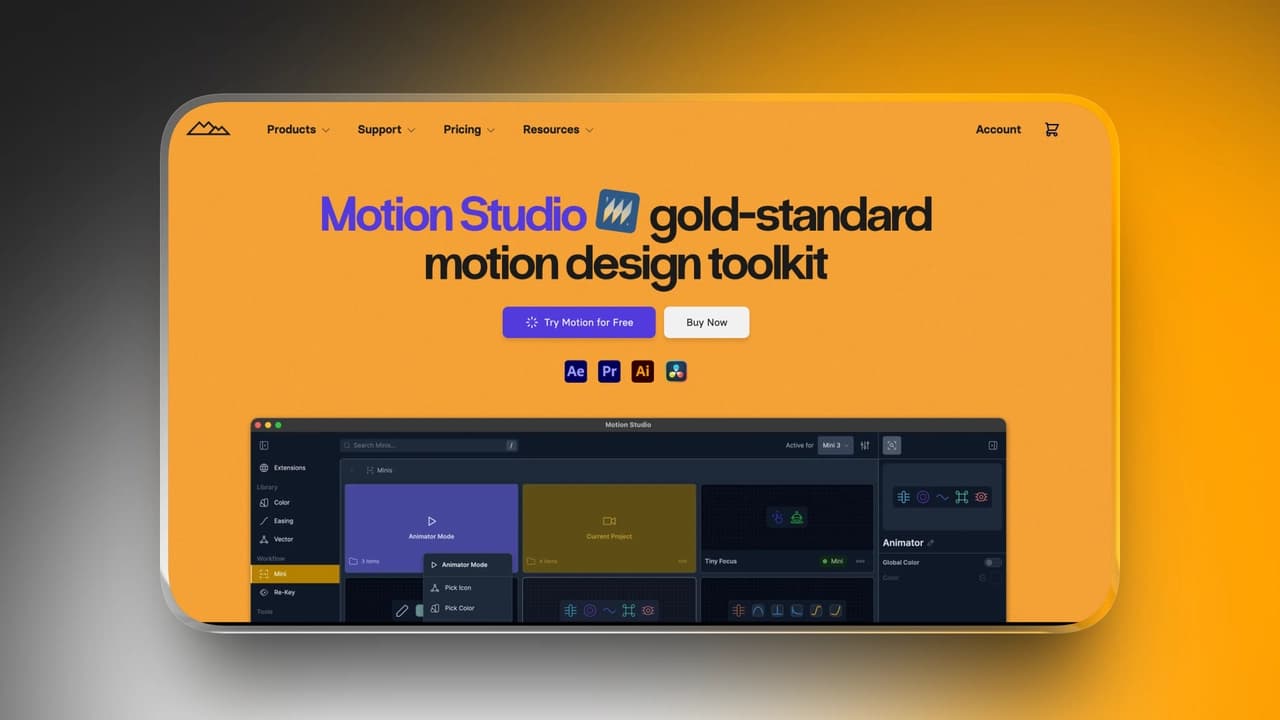
Motion 4 is a complete animation utility plugin for Adobe After Effects. It provides a suite of high-productivity features designed to speed up everyday tasks such as creating smooth overshoots, managing anchor points, setting animation offsets, and quickly applying motion presets, all from a single panel.
It’s built for motion designers who want more than isolated scripts: Motion 4 brings together multiple animation helpers that would otherwise require several separate tools.
Efficiency Impact
Motion 4 helps you cut down on repetitive animation tasks by centralizing commonly used actions into one place. Whether you’re applying consistent motion styles, refining keyframe behaviors, or organizing complex layer setups, Motion 4 reduces manual steps and accelerates compositing work without sacrificing control.
How to Use It in After Effects
Once installed, Motion 4 appears as an extension panel in After Effects. You can:
-
Apply dynamic easing like overshoot and bounce with one click
-
Adjust anchor points without manual repositioning
-
Offset multiple layers or keyframes quickly
-
Access motion presets directly from the panel
The workflow is click-driven and intuitive, helping you skip repetitive manual adjustments and focus on creative timing.
Pricing
-
Monthly plans
-
Motion Studio 13$/mo
-
The Ultimate Bundle 19$/mo
-
-
Annual plans:
-
Motion Studio 11$/mo
-
The Ultimate Bundle 16$/mo
-
AutoAE
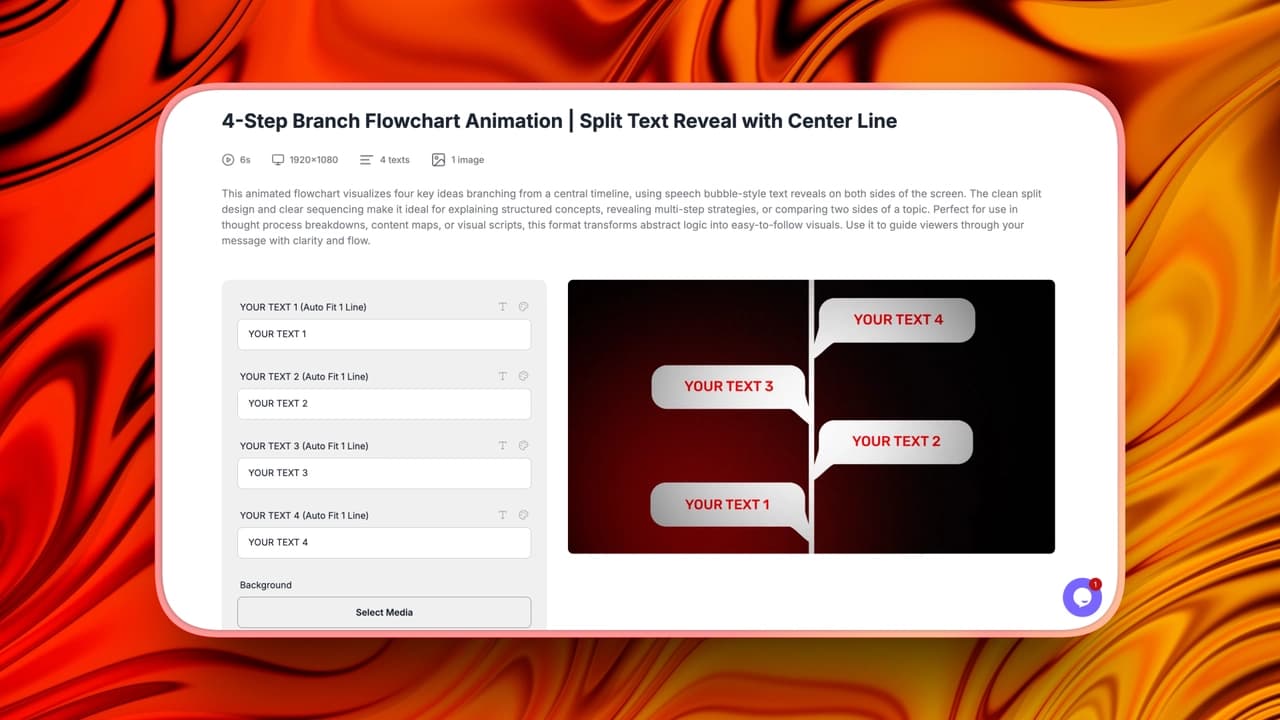
Unlike traditional After Effects plugins that optimize workflow inside AE, AutoAE takes a different approach. As an online Motion Agent, instead of improving panels or easing curves, it removes the need to build certain animations manually in the first place.
AutoAE is built for creators who don’t want to spend hours constructing motion graphics from scratch. Rather than opening After Effects and keyframing every element, users can generate professional-grade motion snippets online, ready to download and integrate into their editing software.
This makes AutoAE particularly suitable for:
-
Short-form creators producing hooks and intros
-
Editors who use AutoAE vs CapCut or Premiere but don’t specialize in AE
-
Small teams that need consistent visual upgrades without increasing production time
AutoAE doesn’t replace After Effects for complex projects. Instead, it functions as a snippet generator, a fast way to create high-impact motion segments that would otherwise require advanced AE skills, starting at $12/month or $2.90 per one-time export.
Key Features
-
After Effects-Style Motion Templates (Without AE) Pre-built animation logic replicates professional motion design techniques like path reveals, dynamic line builds, kinetic type transitions, and structured infographic animations.
-
Browser-Based Rendering Workflow No software installation, no plugin conflicts, no local project management. Everything renders online and exports as video.
-
Snippet-Focused Production Model Instead of building entire explainer videos, AutoAE is optimized for high-impact motion segments: hooks, transitions, diagram reveals, and animated callouts.
Pricing
|
Plan
|
Price
|
Best for
|
|
Free
|
$0
|
Trying the platform or very small tests
|
|
Starter
|
$12 / month
|
Beginners or small projects
|
|
Creator
|
$39 / month
|
Regular content creators
|
|
Agency
|
$99 / month
|
Teams and agencies
|
|
Scale
|
$299 / month
|
High-volume or enterprise use
|
|
Single Video
|
$2.90 / video
|
Occasional one-off animations
|
Ease and Wizz
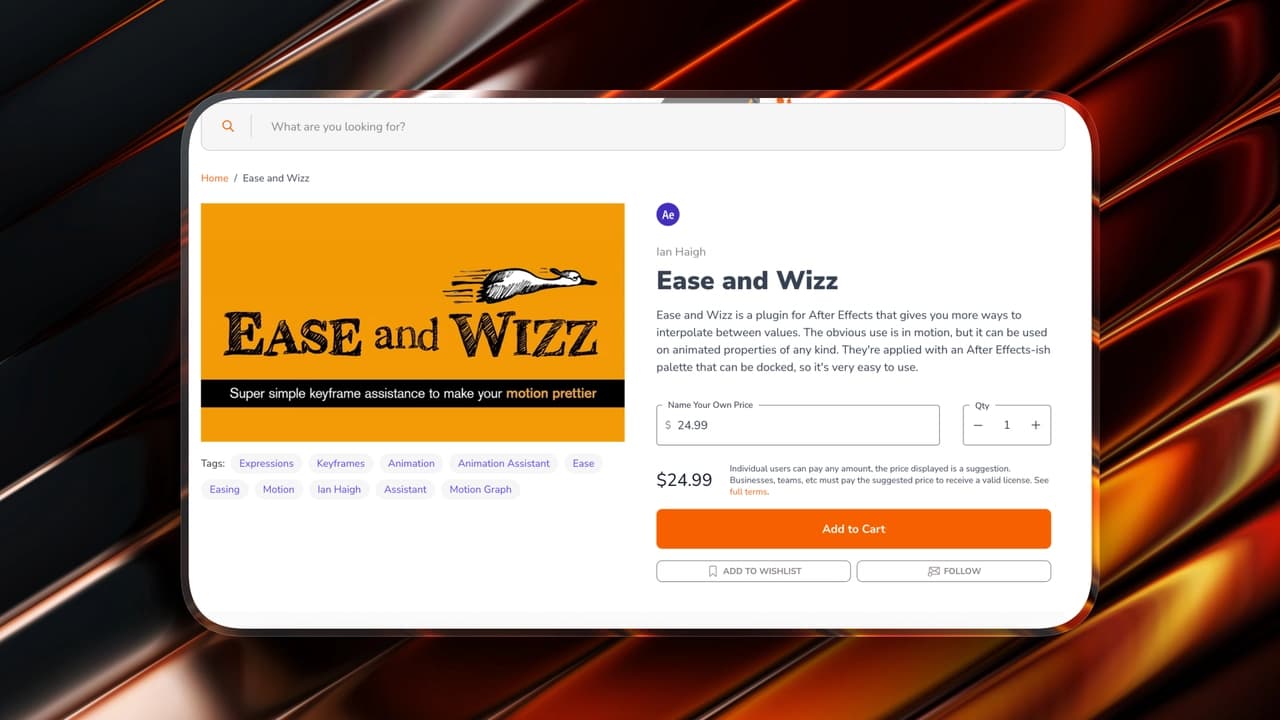
Ease and Wizz is an After Effects script designed to simplify easing adjustments. While After Effects provides basic interpolation and the Graph Editor, adding consistent, smooth easing curves can still be repetitive and time-consuming. Ease and Wizz helps bridge that gap by offering a one-click solution for applying advanced easing equations to selected keyframes.
Instead of manually creating custom easing in the graph, this script brings a range of preset easing styles that can be applied instantly.
Efficiency Impact
The main advantage of Ease and Wizz is time saved on manual easing adjustments. Instead of spending several minutes fine-tuning curves by hand, you can apply well-designed motion equations with a single click.
This is especially valuable when working with multiple animated elements that require a consistent timing feel, as it avoids repetitive graph-editing tasks and helps maintain a coherent animation style across the project
How to Use It in After Effects
Ease and Wizz operates as a script inside After Effects. After installing it, you select the keyframes you want to affect, then run the script. A small UI appears with a list of easing types such as bounce, elastic, exponential, and more. Clicking a preset will automatically apply the chosen easing to your selected keyframes.
There’s no need to open the Graph Editor or manually adjust velocity handles. The script handles it for you with a single interaction
Pricing:
24.99$
Overlord2
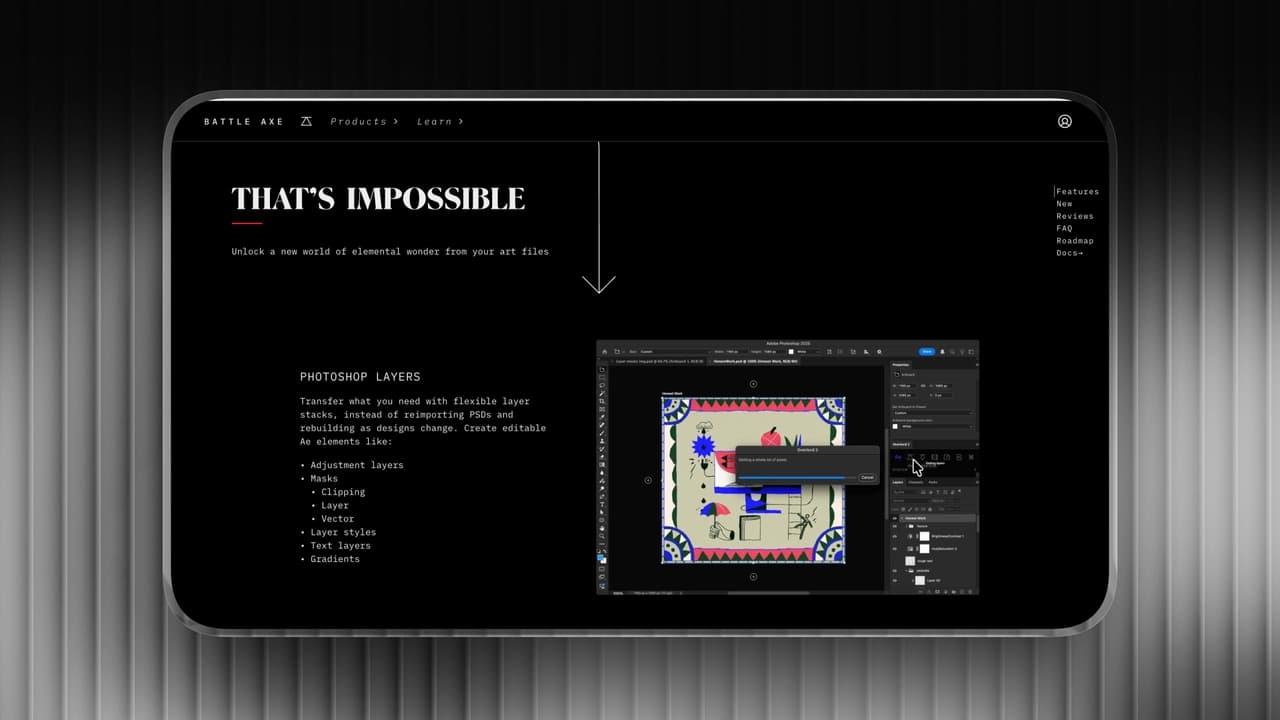
Transferring vector assets from Adobe Illustrator to After Effects is notoriously painful. Traditionally, you have to organize layers in AI, export, import into AE, and convert to shape layers, only to realize you need to change a stroke width, forcing you to start all over again.
Overlord eliminates this entirely. It allows you to send vector artwork directly into AE while keeping paths, fills, and strokes fully editable. No exporting files, no importing dialogs, and no broken layer structures.
Efficiency Impact
Overlord saves time and preserves quality in one of the most repetitive parts of a motion designer’s workflow: transferring vector assets into After Effects. Instead of exporting files, waiting for imported dialogs, and fixing broken layer structures, you can instantly bring artwork into AE with full editability. This reduces errors, preserves design fidelity, and keeps the flow between design and animation much tighter.
How to Use It in After Effects
Using Overlord is very straightforward. After installing the plugin in both After Effects and Illustrator, you simply:
-
Select artwork in Illustrator, then click the Overlord panel to “Send” the selected vector objects.
-
In After Effects, use the Overlord panel to “Receive” the artwork. It appears instantly as editable shape layers.
This process preserves Illustrator shapes, fills, strokes, and layer structure without the need for intermediary file exports like SVG or AI import dialogs.
Pricing:
75$
True Comp Duplicator
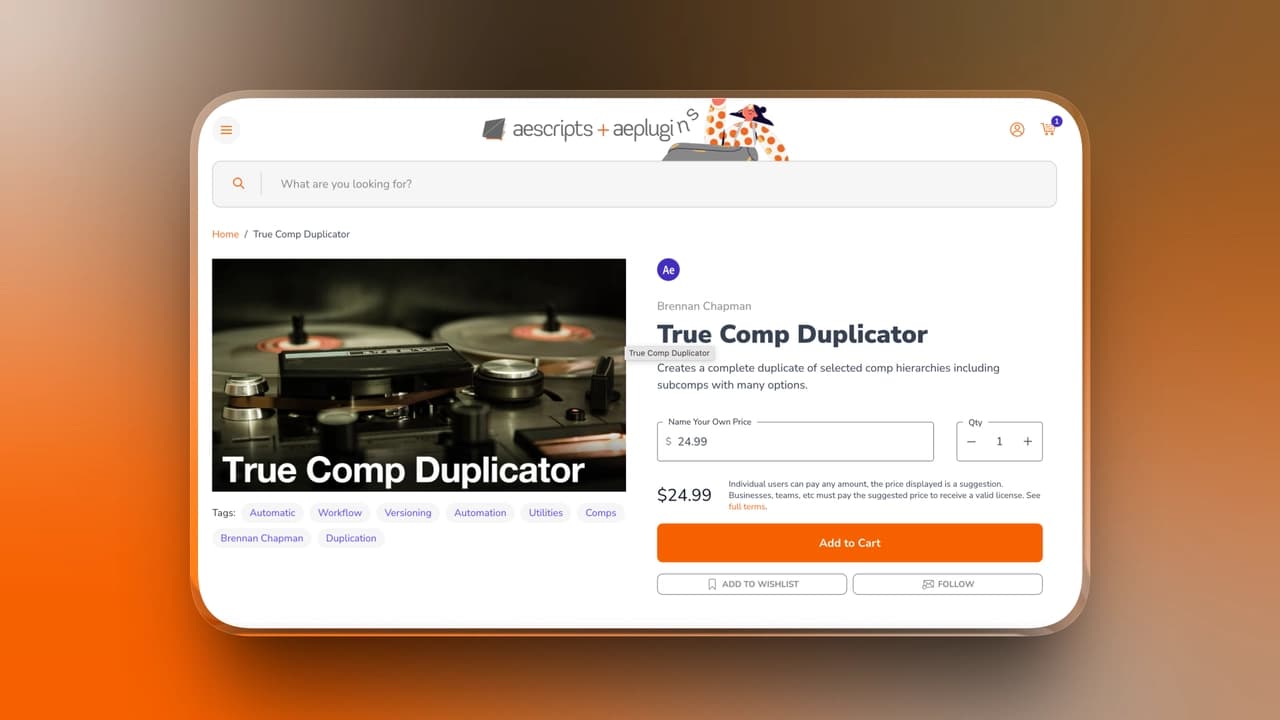
True Comp Duplicator is a utility script for Adobe After Effects designed to simplify the tedious task of duplicating complex compositions. In many workflows, duplicating a comp that contains many nested precomps can be error-prone and time-consuming, especially when maintaining consistent naming and structure. True Comp Duplicator solves this by allowing you to clone an entire comp hierarchy in one click, including all precomps and assets.
Efficiency Impact
True Comp Duplicator significantly speeds up the process of creating multiple versions of a complex composition. Instead of manually duplicating each nested precomp and fixing broken references, you achieve a fully functioning copy in a single action. This is especially valuable in workflows that require iterative variations, such as versioning, A/B testing, and reusable templates, where structural consistency is crucial. By automating this repetitive task, the script helps reduce manual errors, save time, and maintain project stability.
How to Use It in After Effects
Using True Comp Duplicator is straightforward. After installing the script, you open the script panel inside After Effects, select the composition you want to duplicate, and then run the script. True Comp Duplicator automatically:
-
Duplicates the selected comp
-
Copies all nested precompositions
-
Updates the internal references so all duplicated comps link correctly
This eliminates the need to manually duplicate each nested comp one by one, which can easily introduce errors or broken links.
Pricing:
24.99$
Duik Bassel
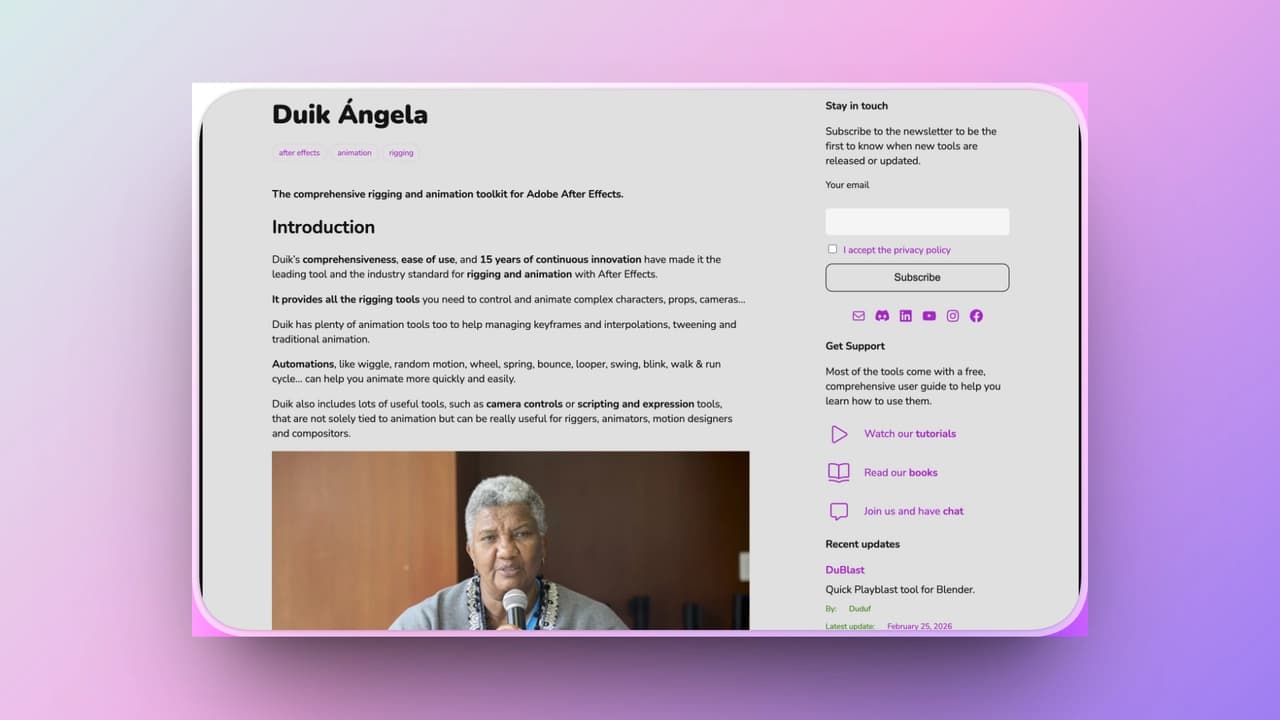
Unlike most simple AE scripts, Duik Bassel (developed by Nicolas Dufresne and the Rainbox team) combines advanced character rigging, inverse kinematics (IK), bones systems, and camera tools into a single cohesive system.
Without Duik, creating natural motion with limbs, constraints, and inverse kinematics would require manual keyframing and constant adjustment. With Duik’s automated rigging and IK systems, motion designers can achieve lifelike movement faster, maintain consistent animation rules across sequences, and avoid repetitive manual edits. It empowers motion designers to create complex character and object animations without needing to switch to full 3D software.
Efficiency Impact
Duik dramatically reduces the time and technical complexity needed to animate characters and complex mechanical structures. Without Duik, creating natural motion with limbs, constraints, and inverse kinematics would require manual keyframing and constant adjustment. With Duik’s automated rigging and IK systems, motion designers can achieve lifelike movement faster, maintain consistent animation rules across sequences, and avoid repetitive manual edits. For projects involving characters, robots, or articulated objects, Duik shifts hours of technical work into a more intuitive visual process.
How to Use It in After Effects
To use Duik, install the script panel into After Effects and open it from the Window menu. The typical workflow involves:
-
Preparing Artwork: Create separate layers for limbs, body parts, or objects you want to animate.
-
Creating Bones: Use Duik to generate a hierarchical bone structure linked to your layers.
-
Adding Controls: Apply IK controllers, foot rigs, or rotation helpers to manage movement.
-
Animating: Use the Duik timeline interface to pose and animate, letting the IK system handle natural motion.
Duik also includes utilities for walk cycles, auto-rigging, puppet pin helpers, and camera rigs, which can be applied directly within the AE project panel.
Pricing:
-
Individual:
-
Monthly membership 10€
-
Annual membership 100€
-
-
Team
-
Monthly membership 20€
-
Annual membership 200€
-
Expression Template Library Workflow
An Expression Template Library is a structured collection of reusable After Effects expressions that can be quickly applied across projects. Instead of writing expressions from scratch every time, designers build a personal or team-based library of commonly used logic, such as wiggle controls, loop behaviors, delay offsets, or responsive scaling systems.
This approach turns expressions from “technical problem-solving” into a repeatable production asset.
How It Works in Practice
Designers create and organize frequently used expressions into:
-
A dedicated preset file
-
A shared project file
-
Or a documentation-based snippet library
When needed, they simply paste or apply the expression template instead of rebuilding it. Over time, the library grows into a structured toolkit that supports faster iteration and consistent behavior across compositions.
Efficiency Impact
Expression writing is not slow because of typing. It’s slow because of thinking. Every time you rebuild logic from scratch, you re-solve the same problem. A template library removes that repetition.
The result:
-
Faster setup for complex animations
-
Reduced debugging time
-
More consistent logic across projects
For motion designers working on repeatable formats or branded systems, this workflow becomes increasingly powerful over time.
Standardized Project Template Workflow
A Standardized Project Template Workflow means building a structured After Effects project file that serves as the foundation for all new work. Instead of starting from an empty composition each time, designers begin with a pre-organized template that includes naming conventions, folder structures, control nulls, pre-built comps, and rendering setups.
It transforms project setup from scratch work into a scalable system.
How It Works in Practice
A typical standardized template may include:
-
Pre-organized folders (Assets, Comps, Precomps, Renders)
-
Master control nulls
-
Pre-linked expressions
-
Version naming structures
-
Pre-configured export settings
When starting a new project, designers duplicate the template and immediately begin animating within a clean, predictable environment.
Efficiency Impact
Most production time is lost in setup and restructuring, not the animation itself. A standardized template removes decision fatigue, reduces structural errors, and speeds up onboarding for team members.
Instead of reinventing project organization every time, designers focus on creative execution. Over long-term workflows, this compounds into substantial time savings and cleaner project management.
Recommended Setup by Creator Type
|
Creator Type
|
Primary Goal
|
Recommended Tools
|
Why These Tools
|
|
A. Shorts / TikTok Creators
|
Speed & Output Volume
|
FX Console, Motion 4, MoBar, AutoAE
|
Eliminates repetitive actions, speeds up animation presets, and even skips manual AE builds when needed, ideal for high-volume short-form production.
|
|
B. YouTube Long-Form Teams
|
Workflow Structure & Quality Control
|
True Comp Duplicator, Flow, Expression Template Library Workflow, Standardized Project Template Workflow
|
Keeps projects organized at scale, ensures consistent motion language, and prevents versioning chaos across multiple editors.
|
|
C. Designers / Motion Artists
|
Control & Animation Precision
|
Flow, Ease and Wizz, Duik, Overlord
|
Offers precise curve control, advanced easing systems, professional rigging, and smooth AI-to-AE vector workflows.
|
|
D. Small Teams / Solo Creators
|
Budget Efficiency & Commercial Viability
|
MoBar (Free), Duik (Pay What You Want), FX Console, AutoAE
|
Maximizes output with minimal investment while maintaining professional-quality motion assets for commercial use.
|
FAQ
What plugins do professional After Effects users install first?
Most professionals start with workflow accelerators rather than advanced animation tools. Plugins like FX Console and MoBar are often installed first because they improve daily efficiency immediately. Once the workflow foundation is optimized, designers typically add tools like Flow or Motion 4 for animation refinement, and Duik for character-heavy projects.
The key is solving high-frequency bottlenecks before investing in specialized systems.
Which plugin should beginners start with?
Beginners should prioritize tools that improve workflow without increasing complexity. FX Console and MoBar are beginner-friendly because they enhance speed without changing core animation principles.
More advanced tools like Duik or complex expression systems are better introduced once foundational animation skills are established.
How do I choose the right tools for my workflow?
Start by identifying your biggest bottleneck:
-
If you lose time searching for effects → prioritize search accelerators.
-
If easing refinement takes too long → focus on curve management tools.
-
If versioning projects is messy → use comp duplication systems.
-
If you work with characters → invest in rigging toolkits.
The best setup is not the largest toolset. It’s the one that removes your most frequent friction points.