AutoAE
  • All Templates
  • Use Cases
    • Text Animation
    • Video Flowchart
    • Engagement Mockup
    • Google Search Animation
    • 3D Transformation
  • Styles
    • AutoAE X Arsacre
    • AutoAE X Erfan
    • AutoAE X Davinci
  • License
  • Pricing
  • Changelog
  • Blog
Try for free
AutoAE
  • All Templates
  • Use Cases
    • Text Animation
    • Video Flowchart
    • Engagement Mockup
    • Google Search Animation
    • 3D Transformation
  • Styles
    • AutoAE X Arsacre
    • AutoAE X Erfan
    • AutoAE X Davinci
  • License
  • Pricing
  • Changelog
  • Blog
Sign in

Footer

InstagramInstagramYoutubeYouTubeX (Twitter)XTiktokTikTokLinkedInLinkedInRedditReddit

Use cases

  • Text Animation
  • Video Flowchart
  • Engagement Mockup
  • Google Search Animation
  • 3D Transformation

Styles

  • AutoAE X Arsacre
  • AutoAE X Erfan
  • AutoAE X Davinci

Product

  • Pricing
  • Changelog
  • Blog

Support

  • Contact
  • Affiliate
  • License
  • Privacy
  • Terms

Top 8 Flowchart / Infographic Animation Tools for Explainers

January 12, 2026
Selina Z
Selina ZFocused on in-depth research in AI tools, AI video, and generative AI.
Top 8 Flowchart / Infographic Animation Tools for Explainers
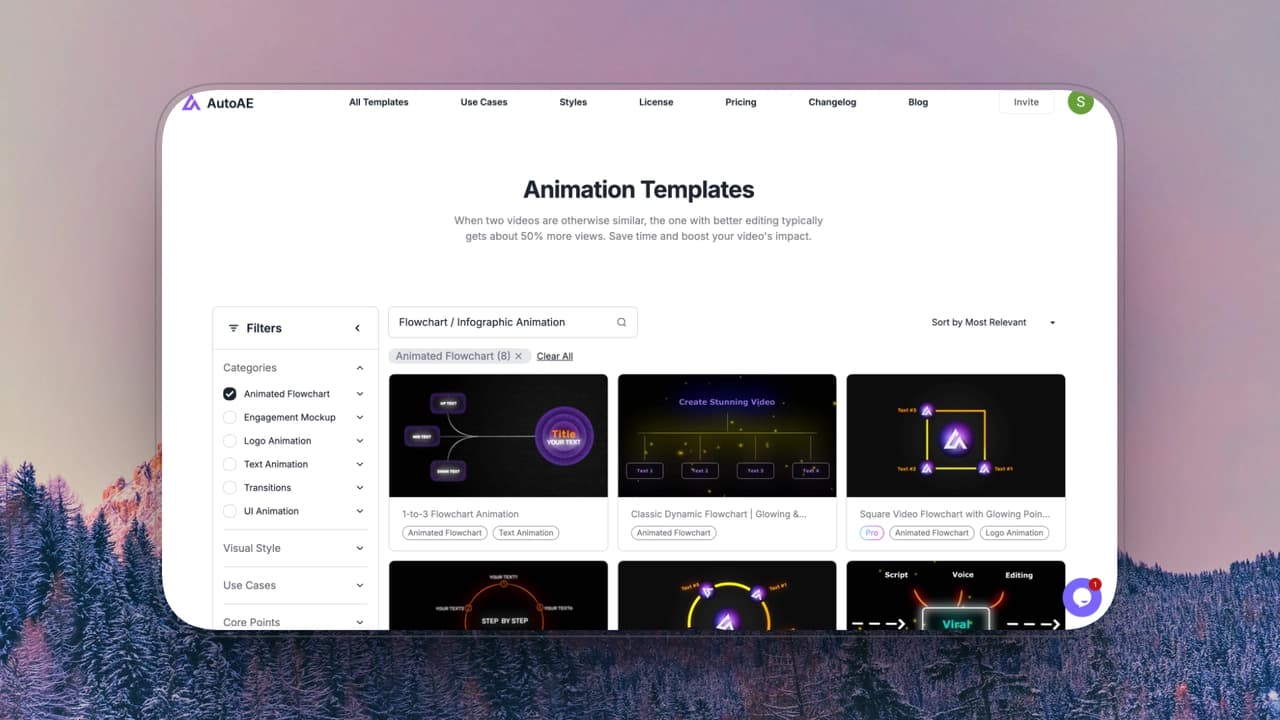
Looking for the best flowchart animation tools? Whether you need After Effects for total keyframe control or fast browser-based generators for YouTube Shorts, we tested the top 8 infographic animation software to speed up your video editing workflow.
Tool
Best For
 
Skill Level
Animation Control
Pricing (Starting)
Key Strength
Adobe After Effects
Professional motion designers
 
Advanced
 
Full keyframe control
$22.99/mo
 
Studio-level cinematic motion
AutoAE
YouTube explainers & social creators
Beginner–Intermediate
Structured motion systems
Free / $8.25/mo
AE-style motion without AE
Canva
Quick infographic slides
Beginner
Present animations
Free / $120/year
Fast drag-and-drop simplicity
Visme
Data-driven explainers
Beginner–Intermediate
Object-level sequencing
$29/mo
Strong chart & data tools
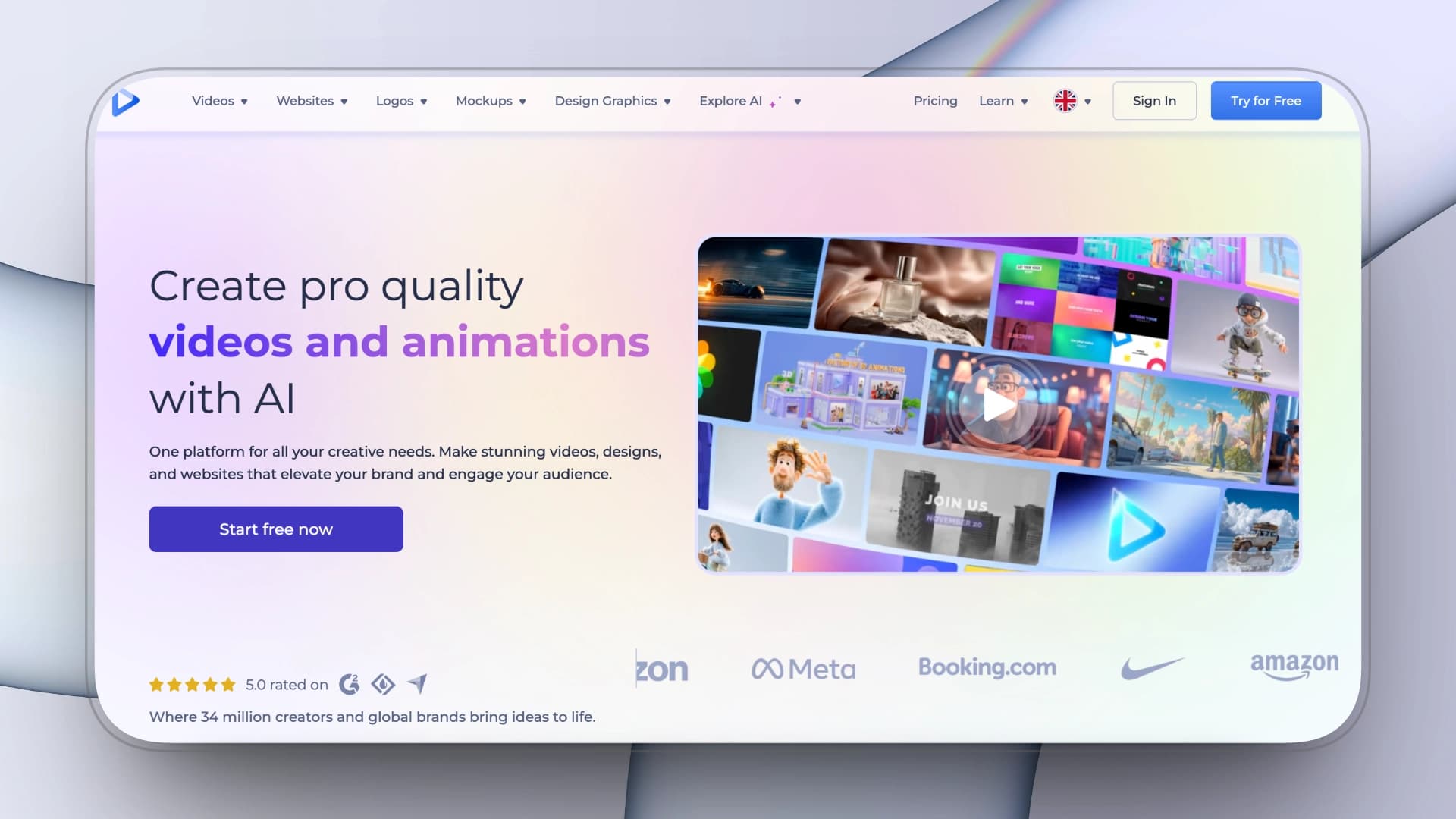
Renderforest
Startup / marketing videos
Beginner
Template-based
$15/mo
Pre-built explainer scenes
Vyond
Corporate training & HR
Beginner–Intermediate
Scene timeline control
Custom pricing
Character-driven explainers
Capcut
Shorts / TikTok creators
Beginner
Basic keyframes
Free / $7.99/mo
Fast social editing
Powtoon
Education & presentations
Beginner
Slide-based timing
$15/mo (annual)
Structured presentation animation

Intro

If you’ve ever spent two hours staring at the Graph Editor just to make a simple 5-node flowchart bounce smoothly, you know the pain of custom data animation.
Animated infographics, flowcharts, and dynamic diagrams are what separate a premium explainer video from a boring slideshow. But here is the reality of modern post-production: not everyone has the time or budget to build every arrow revealed from scratch.
Your choice of tool dictates your workflow. Are you churning out daily TikToks and need a flowchart built in 3 minutes? Are you managing a YouTube team where consistency and brand motion guidelines are non-negotiable? Or maybe you are a solo motion designer who needs absolute keyframe control over every easing curve?
In this guide, we break down the top 8 flowchart and infographic animation tools. We evaluated them based on rendering speed, motion control, workflow integration (like Alpha channel exports), and budget friendliness, so you can stop wrestling with templates and get back to editing.

Evaluation Criteria

To compare these flowchart and infographic animation tools fairly, we evaluated each platform across five core dimensions:
Dimension
What It Measures
Why It Matters
Motion Control
Level of precision over timing, sequencing, keyframes, and animation customization
Flowchart animation depends on logical rhythm. More control = more polished results.
Ease of Use
Learning curve and how quickly users can start creating
A powerful tool only matters if creators can realistically use it.
Speed of Production
Time required to move from idea to export
 
In modern content workflows, efficiency drives consistency and output.
Scalability
Ability to support complex projects, brand systems, or team workflows
One infographic is easy — scaling to 50 requires structure.
Value for Money
Pricing relative to features and long-term usability
The best tool isn’t the most power
5 – Excellent⭐️⭐️⭐️⭐️⭐️ Industry-leading performance with minimal limitations.
4 – Strong⭐️⭐️⭐️⭐️ Very solid performance with only minor constraints.
3 – Good⭐️⭐️⭐️ Reliable and usable, but with noticeable trade-offs.
2 – Limited⭐️⭐️ Basic functionality that may restrict advanced workflows.
1 – Very Limited⭐️ Minimal capability in this specific area
 

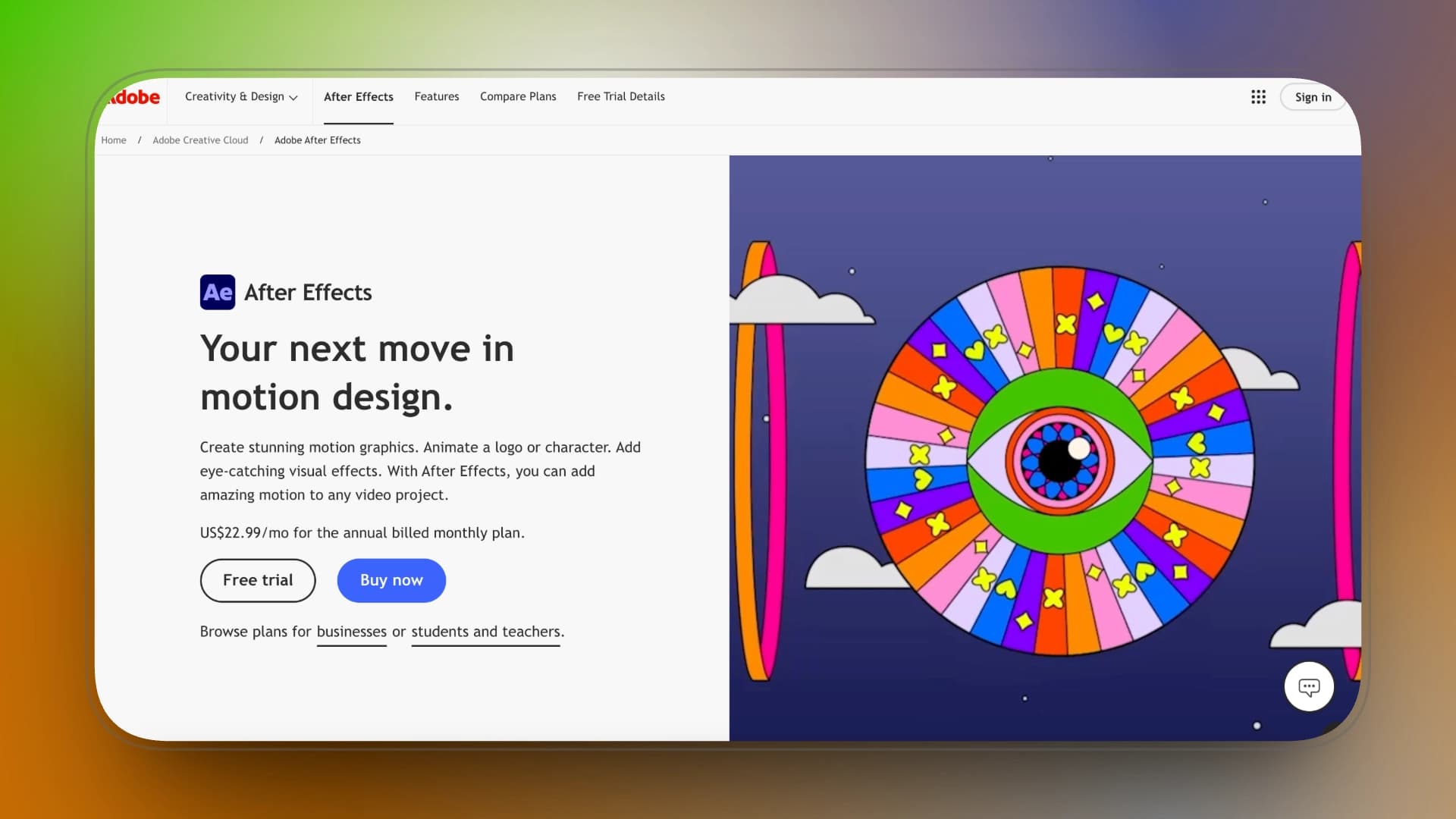
Adobe After Effects

If you’ve ever watched a polished YouTube explainer with smooth arrow reveals, animated flowcharts, dynamic graph builds, or kinetic typography — chances are it was built in After Effects
For flowchart and infographic animation, After Effects solves one core problem: total control. You’re not limited to rigid templates. You can animate every node, line, arrowhead, graph bar, and transition exactly the way you want — down to the exact easing curves and frame timing. In professional workflows, whenever a client wants a custom animated diagram that follows brand motion guidelines precisely, AE is still the safest bet.
But that absolute control comes with a heavy cost: time.

Key Features

  1. Full Keyframe & Graph Editor Control You can animate diagram elements node-by-node, build arrows along paths, and fine-tune easing curves for professional motion rhythm.
  2. Shape Layer & Expression System Flowcharts can be built with procedural animation logic — repeaters, trim paths, parenting systems — making complex infographic sequences scalable.
  3. Plugin Ecosystem With plugins (e.g., data-driven animation tools), you can connect charts to spreadsheets or automate animation builds for large explainer projects.

Price:

You can use After Effects alone for $22.99/month, but once you need the wider Adobe ecosystem, the $41.99/month Creative Cloud Pro plan quickly becomes the realistic choice.

Pros

  • Unmatched control over motion timing and style
  • Broadcast and studio-level output quality
  • Supports advanced workflows (alpha export, 4K+, team pipelines)

Cons

  • Very steep learning curve
  • Time-intensive for small projects
  • Overkill for short-form or quick social content

The Verdict (Who is this for?):

Best for (YouTube Long-form Teams) & (Motion Designers):
Delivers unmatched control over motion timing and style , guaranteeing broadcast and studio-level output quality.
Skip if you are (Shorts/TikTok Creators) or (Solo on a budget):
It has a very steep learning curve and is incredibly time-intensive for small projects. If you just need a 3-second animated graph for a TikTok hook, using AE is absolute overkill.
 
Category
Score (5 Max)
Motion Control
5⭐️⭐️⭐️⭐️⭐️
Ease of Use
1⭐️
Speed of Production
2⭐️⭐️
Scalability
5⭐️⭐️⭐️⭐️⭐️
Value for Money
4⭐️⭐️⭐️⭐️
 

AutoAE

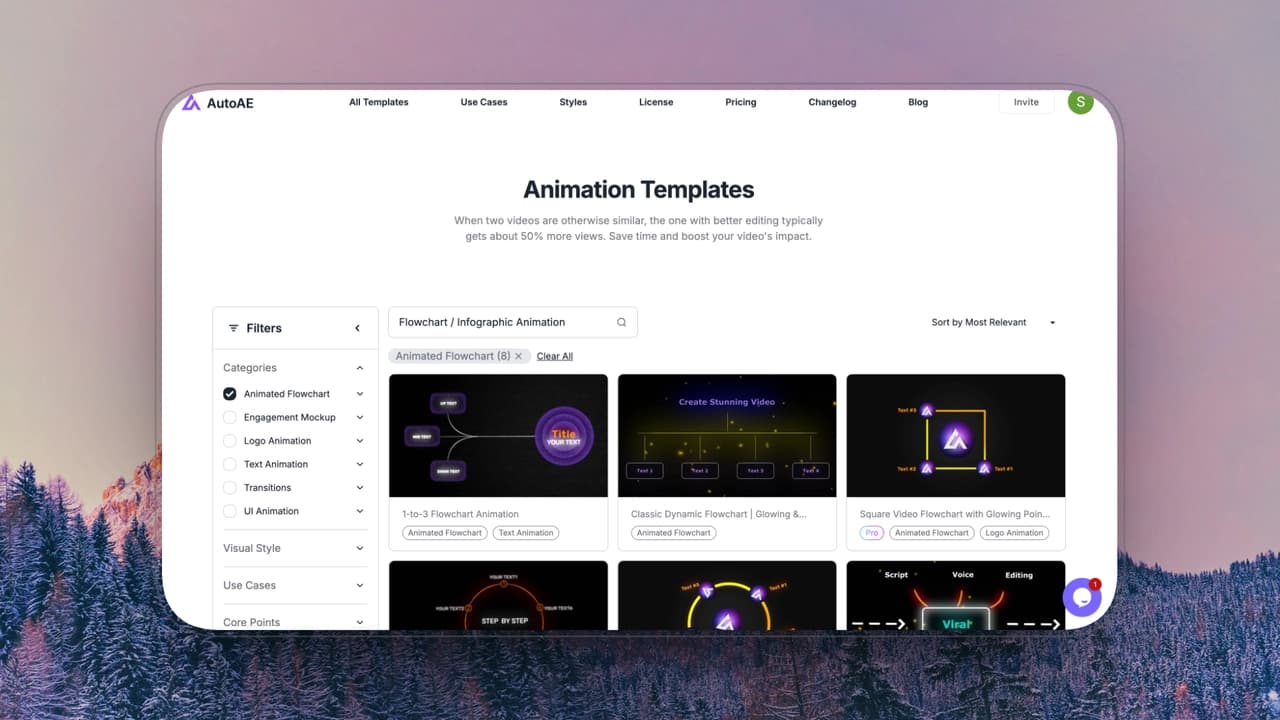
AutoAE is built for creators who want high-end motion aesthetics — but don’t want to build animations from scratch inside After Effects.
Unlike template marketplaces that require downloading project files and adjusting dozens of layers, AutoAE runs entirely in the browser. You choose a motion system (flowchart reveal, infographic build, callout animation), customize text or assets, and export a ready-to-use animated clip.
For flowchart and infographic animation, AutoAE is strongest when you need structured motion logic without touching keyframes. The animation systems — such as sequential node reveals, directional arrow builds, or layered typography transitions — are pre-engineered. You’re adjusting content, not constructing animation logic.

Key Features

  1. After Effects–Style Motion Templates (Without AE) Pre-built animation logic replicates professional motion design techniques like path reveals, dynamic line builds, kinetic type transitions, and structured infographic animations.
  2. Browser-Based Rendering Workflow No software installation, no plugin conflicts, no local project management. Everything renders online and exports as video.
  3. Snippet-Focused Production Model Instead of building entire explainer videos, AutoAE is optimized for high-impact motion segments — hooks, transitions, diagram reveals, and animated callouts.

Pricing

Plan
Price
Best for
Free
$0
Trying the platform or very small tests
Starter
$8.25 / month
Beginners or small projects
Creator
$20.75 / month
Regular content creators
Agency
$49.92 / month
Teams and agencies
Scale
$166.58 / month
High-volume or enterprise use
Single Video
$2.90 / video
Occasional one-off animations

Pros

  • Very fast production time (minutes instead of hours)
  • No motion design experience required
  • Higher perceived production value than typical social templates

Cons

  • Not a full video editor
  • Template-based (less freedom than AE)
  • Best for segments, not full-length animated films

The Verdict (Who is this for?):

Best for (Shorts/TikTok Creators) & (Solo on a budget):
Very fast production time (minutes instead of hours) with no motion design experience required. It offers a much higher perceived production value than typical social templates.
Great for (YouTube Long-form Teams):
Ideal for quickly generating polished, consistent data visual snippets to boost viewer retention without bottlenecking your lead editor.
Skip if you are (Motion Designers):
It is not a full video editor and is template-based, meaning you have less freedom than AE. It is best for segments, not full-length animated films.
 
Category
Score (5 Max)
Motion Control
4⭐️⭐️⭐️⭐️
Ease of Use
4⭐️⭐️⭐️⭐️
Speed of Production
5⭐️⭐️⭐️⭐️⭐️
Scalability
4⭐️⭐️⭐️⭐️
Value for Money
5⭐️⭐️⭐️⭐️⭐️

Canva

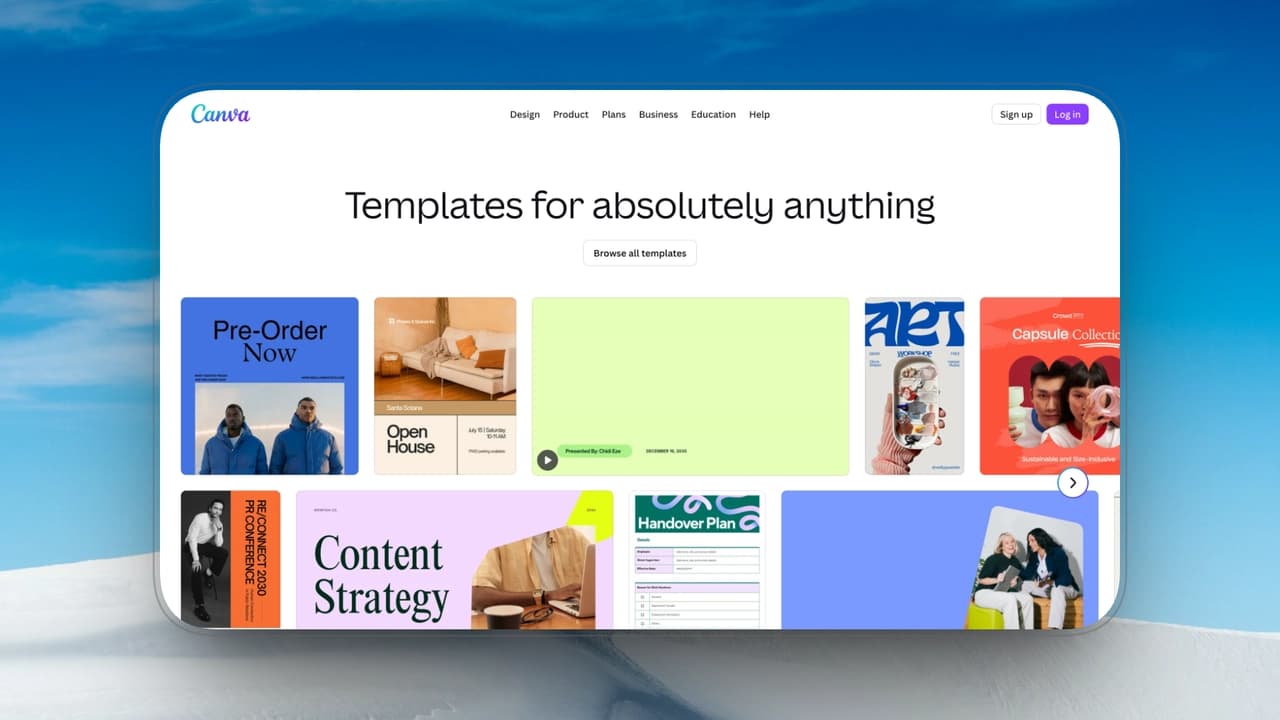
Canva has become the default visual tool for non-designers. For many creators, it’s the first place they go to build slides, charts, or simple animated infographics.
For flowchart and infographic animation, Canva solves one thing extremely well: speed and simplicity. You can drag in shapes, connectors, icons, and apply basic animations like fade, slide, pop, or rise — all without any technical setup.
In real-world workflows, Canva is often used to create animated explainer slides or data visuals that are later exported as MP4 and inserted into a longer YouTube or course video.

Key Features

  1. Drag-and-Drop Flowchart Builder Built-in shapes, connectors, and smart alignment tools make diagram creation fast and beginner-friendly.
  2. One-Click Element Animations Apply preset motion styles (fade, slide, wipe, etc.) to individual elements or entire pages.
  3. Cloud-Based & Collaboration Friendly Teams can co-edit infographic slides directly in the browser without project file management.

Pricing

Canva provides a free tier suitable for basic infographic and slide animations.
Canva Pro ($120/year per user) adds brand management tools, advanced resizing, premium assets, and AI features — making it more viable for consistent, professional explainer workflows.

Pros

  • Extremely easy to learn
  • Very fast for simple animated visuals
  • Large template and asset library

Cons

  • Limited motion control (no fine keyframe editing)
  • Animations can feel generic or repetitive
  • Not ideal for high-end branded motion systems

The Verdict (Who is this for?):

Best for (Shorts/TikTok Creators) & (Solo on a budget):
It is extremely easy to learn and very fast for simple animated visuals. The large template and asset library means you can get a graphic out the door in under 5 minutes.
Passable for (YouTube Long-form Teams):
Good for basic, fullscreen informative slides, but animations can feel generic or repetitive if overused. It is not ideal for high-end branded motion systems.
Skip if you are (Motion Designers):
It offers highly limited motion control (no fine keyframe editing). If you care about cinematic easing and layer parenting, Canva will only frustrate you.
Category
Score (5 Max)
Motion Control
2⭐️⭐️
Ease of Use
5⭐️⭐️⭐️⭐️⭐️
Speed of Production
5⭐️⭐️⭐️⭐️⭐️
Scalability
3⭐️⭐️⭐️
Value for Money
4⭐️⭐️⭐️⭐️

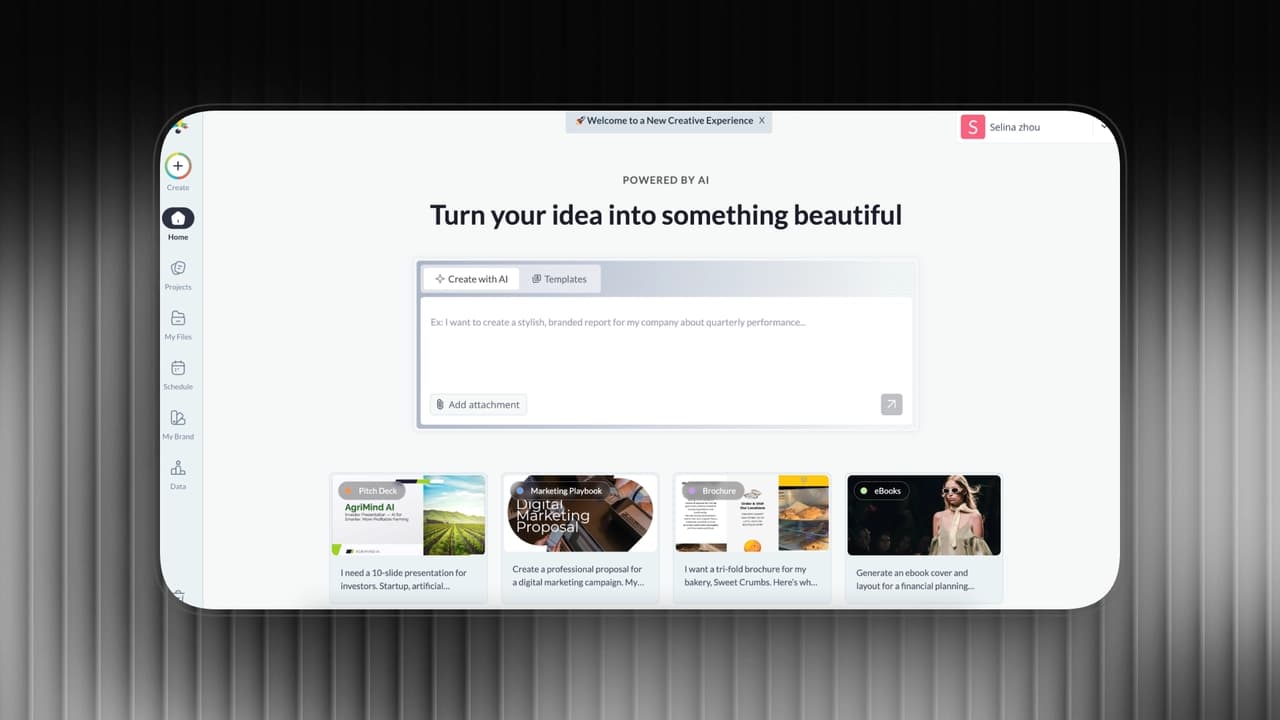
Visme

While Canva is a generalist tool, Visme is built entirely around data visualization and presentation-driven storytelling. If your explainer video requires heavy metric breakdowns, animated statistics, or complex corporate hierarchies, Visme is significantly more powerful. It leans much more heavily into charts, statistics, and structured infographic systems.
For flowchart and infographic animation, Visme offers stronger data tools and slightly more granular control over how elements appear on screen. Instead of just wiping an entire slide, you can animate individual objects within a slide and sequence their entrances, which makes step-by-step process breakdowns much cleaner than basic slide-wide animations.
In real-world explainer workflows, Visme works exceptionally well for B2B SaaS demos, educational breakdowns, and metric-driven content. However, from an editor's perspective, you must accept a trade-off: like most slide-based tools, it doesn’t offer true timeline-level motion control or advanced easing adjustments.

Key Features

  1. Advanced Chart & Data Visualization Tools Supports animated bar charts, pie charts, line graphs, and customizable infographic components.
  2. Element-Level Animation Control You can animate individual objects within a slide rather than applying only page-wide transitions.
  3. Presentation-to-Video Export Projects can be exported as MP4 files, making it usable inside YouTube or course production workflows.

Pricing

  • Pro 59$/mo
  • Starter 29$/mo
  • Annual plans offer 57% discount
No watermarks, no commercial usage fees.

Pros

  • Strong for data-driven explainers
  • More structured infographic control than Canva
  • Good for educational or SaaS content

Cons

  • Animation styles are still preset-based
  • Less cinematic motion compared to professional tools
  • Can feel presentation-heavy for social content

The Verdict (Who is this for?):

Best for (YouTube Long-form Teams & Edu-creators):
Incredibly strong for data-driven explainers. It provides much more structured infographic control than Canva and is perfect for educational or SaaS content.
Passable for (Solo on a budget):
Good if your niche is heavily corporate or data-focused, though the monthly pricing is a bit steeper than basic creator tools.
Skip if you are (Shorts/TikTok) or (Motion Designers):
The animation styles are still preset-based , resulting in a less cinematic motion compared to professional tools. Because it inherently feels "presentation-heavy," it often flops on fast-paced social conten
Category
Score (5 Max)
Motion Control
3⭐️⭐️⭐️
Ease of Use
4⭐️⭐️⭐️⭐️
Speed of Production
4⭐️⭐️⭐️⭐️
Scalability
4⭐️⭐️⭐️⭐️
Value for Money
3⭐️⭐️⭐️

Renderforest

Renderforest is a template-driven online video platform designed for fast explainer and marketing video production. While tools like AutoAE or Canva let you build a diagram piece by piece, Renderforest takes a completely different approach: it doesn’t ask you to build diagrams manually at all.
Instead, you choose pre-designed explainer scenes where process flows, step sequences, and icon-based diagrams are already fully animated. You simply replace the text and visuals — the underlying motion logic stays completely fixed. This makes it incredibly efficient for startup pitch decks, marketing explainers, or quick business overviews. However, from a video editor's perspective, this is a double-edged sword. Because the animation timing and transitions are pre-structured, you have virtually limited control over sequencing, easing, or custom motion tweaks.

Key Features

  1. Pre-Built Explainer Templates Includes business, marketing, and educational animation scenes with animated diagrams and process visuals.
  2. Scene-Based Editing System Users edit text and replace assets within structured scenes rather than manipulating raw animation layers.
  3. Cloud Rendering & Export Fully browser-based with export options for different resolutions depending on plan.

Pricing

  • Monthly plans
    • Basic: $15 / mo
    • Standard: $30 / mo
    • Ultimate: $50 / mo
    • Creator: $250 / mo
  • Annual plans: ~30% discount

Pros

  • Fast setup with minimal technical knowledge
  • Large template library
  • Suitable for business-style explainers

Cons

  • Limited control over animation timing
  • Templates can look repetitive
  • Hard to achieve a fully custom brand motion style

The Verdict (Who is this for?):

Best for (Solo Startups on a budget):
Offers incredibly fast setup with minimal technical knowledge required. The large template library makes it highly suitable for business-style explainers.
Passable for (Shorts/TikTok Creators):
If you just need a quick, generic 3-second graphic to keep visual retention high, it works. But be aware that templates can look repetitive.
Skip if you are (YouTube Long-form Teams) or (Motion Designers):
You have highly limited control over animation timing(). If your client has strict brand guidelines, it is extremely hard to achieve a fully custom brand motion style here.
Category
Score (5 Max)
Motion Control
2⭐️⭐️
Ease of Use
5⭐️⭐️⭐️⭐️⭐️
Speed of Production
4⭐️⭐️⭐️⭐️
Scalability
3⭐️⭐️⭐️
Value for Money
3⭐️⭐️⭐️

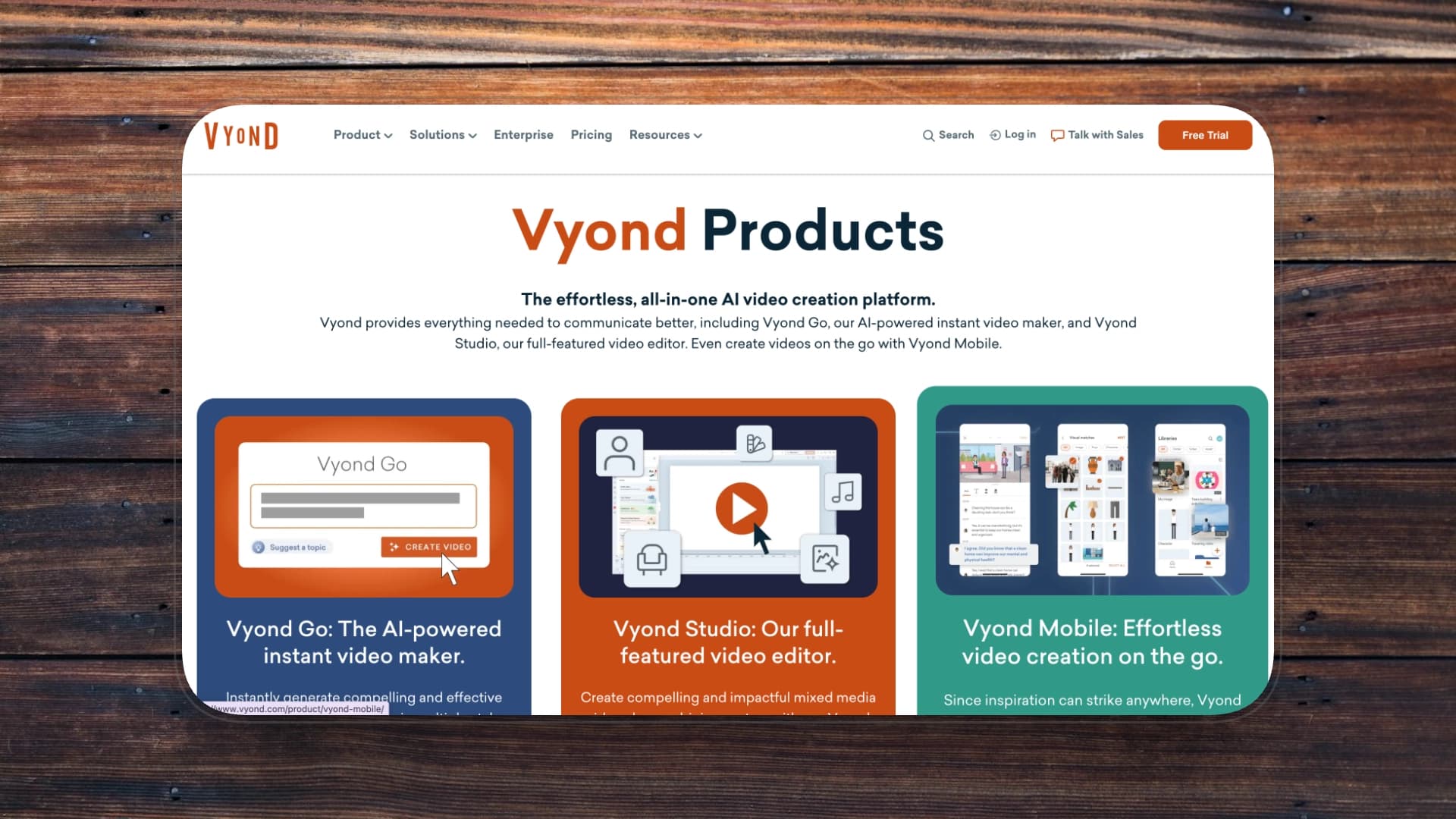
Vyond

Vyond is a highly specialized, business-focused animation platform that dominates the market for character-driven explainer videos and corporate storytelling. If your video requires a narrator or a mascot pointing to the data, Vyond is in a league of its own.
For flowchart and infographic animation, Vyond provides structured scenes where complex processes, corporate hierarchies, and step-by-step systems can be visualized dynamically — often seamlessly combined with animated characters and lip-synced narration. Unlike basic presentation tools, Vyond offers an actual timeline. From an editor's perspective, this is a massive upgrade, as it allows you to time your flowchart node reveals perfectly to the beat of a voiceover track.

Key Features

  1. Character-Based Explainer System Built-in animated characters, gestures, and scene compositions designed for business storytelling.
  2. Timeline-Based Scene Editing Offers more control than simple slide tools, allowing timing adjustments and layered animation inside each scene.
  3. Process & Hierarchy Templates Includes ready-made visual structures for workflows, org charts, and step-based explanations.

Pros

  • Strong for corporate and training content
  • More animation control than basic slide tools
  • Good for narrative-driven explainers

Cons

  • Visual style leans corporate
  • Limited cinematic motion depth
  • Higher pricing compared to casual creator tools

Pricing

  • Annual
    • starter: $58 / mo
    • pro: $100 / mo
    • enterprise: $137 / mo
    • agency: $167 / mo
  • Monthly plans: ~40% more

The Verdict (Who is this for?):

Best for (YouTube Long-form & Corporate Teams) & (B2B Soloists):
Incredibly strong for corporate and training content. It offers far more animation control than basic slide tools and is arguably the best platform on this list for narrative-driven explainers.
Skip if you are (Shorts/TikTok Creators):
The visual style leans heavily corporate. It does not fit the fast-paced, trendy aesthetic required for modern short-form social media.
Skip if you are (Motion Designers):
Despite having a timeline, it suffers from limited cinematic motion depth. If you want advanced fluid motion or custom 3D graph builds, stick to After Effects
Category
Score (5 Max)
Motion Control
3⭐️⭐️⭐️
Ease of Use
4⭐️⭐️⭐️⭐️
Speed of Production
3⭐️⭐️⭐️
Scalability
4⭐️⭐️⭐️⭐️
Value for Money
3⭐️⭐️⭐️

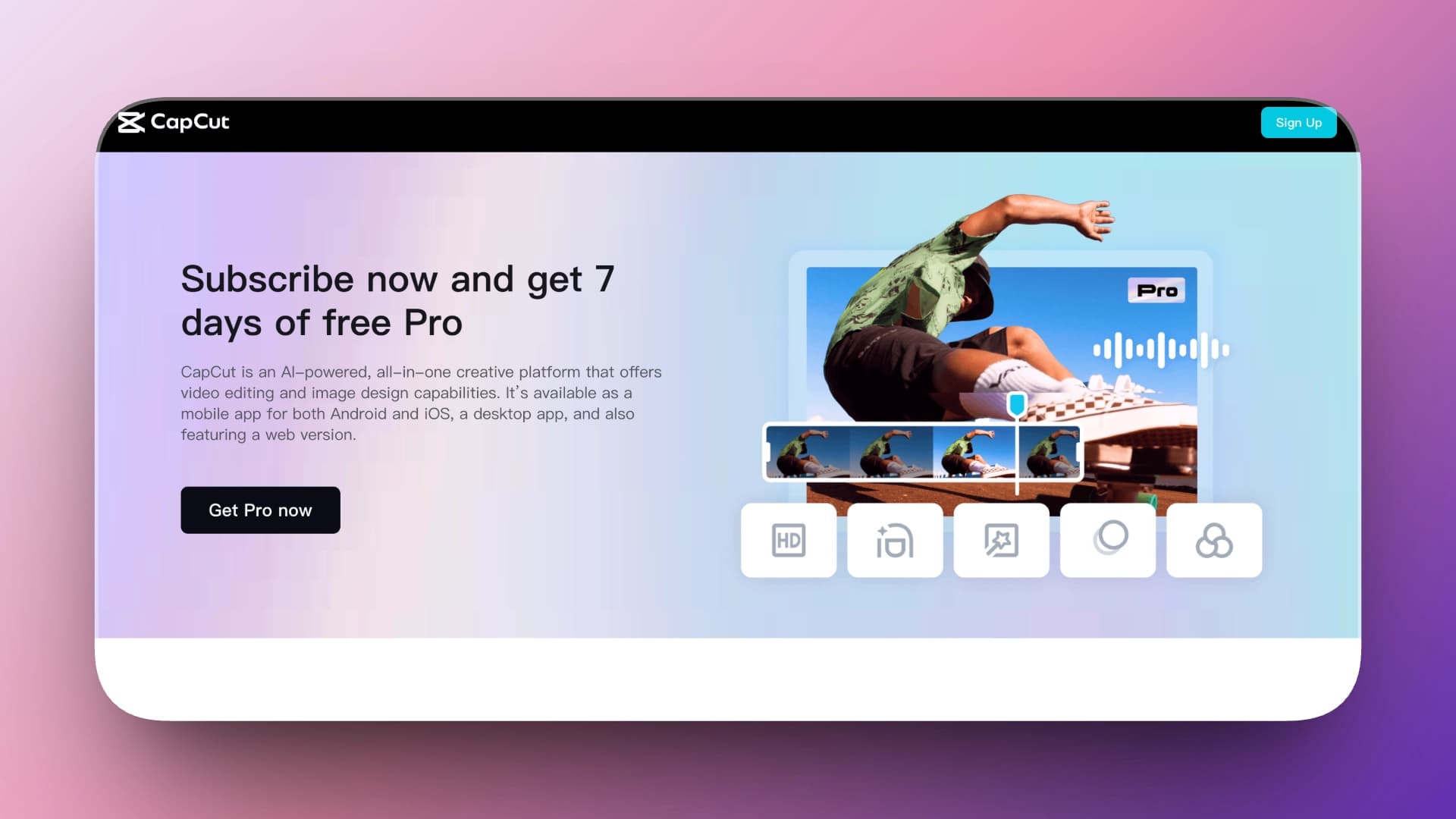
CapCut

CapCut is one of the most widely used editors for Shorts, TikTok, and fast-turnaround YouTube content.
For flowchart and infographic animation, CapCut isn’t a dedicated diagram tool — but it allows creators to animate shapes, arrows, text, and overlays directly inside a timeline-based editor. You can keyframe position, scale, opacity, and rotation, which makes basic diagram sequencing possible without leaving your edit.
In practice, many creators build simple animated flowcharts by stacking shape layers and manually offsetting keyframes. It works — especially for short-form content — but once diagrams become complex (multiple nodes, directional reveals, staged transitions), the manual setup becomes time-consuming.

Key Features

  1. Timeline-Based Keyframe Animation You can animate position, scale, rotation, and opacity for infographic elements directly in the editor.
  2. Built-In Text & Sticker Animations Preset motion styles for titles, callouts, arrows, and highlight effects.
  3. Fast Social Export Workflow Optimized for vertical video formats and rapid publishing cycles.

Pricing

  • Free (Freemium)
  • CapCut Pro:
    • $7.99/month
    • $74.99/year

Pros

  • Extremely fast for social content
  • Very low learning curve
  • All-in-one editing + basic animation

Cons

  • Limited precision control for complex diagrams
  • Motion can feel template-heavy
  • Not ideal for structured infographic systems

The Verdict (Who is this for?):

Best for (Shorts/TikTok Creators) & (Solo on a budget):
It has a very low learning curve and is extremely fast for social content. Having all-in-one editing plus basic animation is a massive win for solo creators.
Passable for (YouTube Long-form Teams):
Great for a quick arrow pointing at a screenshot, but you will waste hours if you try to build a 10-step corporate flowchart manually.
Skip if you are (Motion Designers):
It provides highly limited precision control for complex diagrams and is fundamentally not ideal for structured infographic systems
Category
Score (5 Max)
Motion Control
3⭐️⭐️⭐️
Ease of Use
5⭐️⭐️⭐️⭐️⭐️
Speed of Production
5⭐️⭐️⭐️⭐️⭐️
Scalability
3⭐️⭐️⭐️
Value for Money
5⭐️⭐️⭐️⭐️⭐️

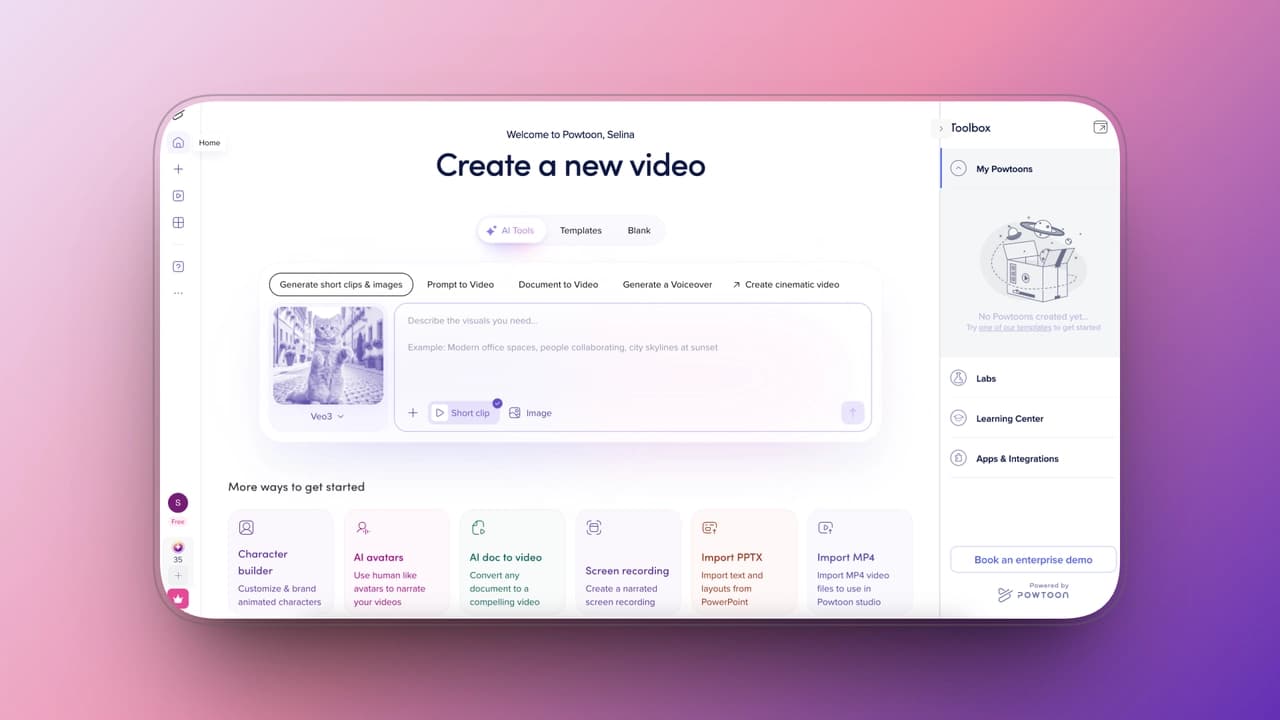
Powtoon

Powtoon is an online animation tool built around presentation-style explainer videos, commonly used in education and marketing.
For flowchart and infographic animation, Powtoon provides slide-based scenes with animated text, icons, and structured diagram layouts. You’re working within predefined animation styles, but you can control object timing inside each scene to build step-by-step explanations.
Compared to business-heavy tools like Vyond, Powtoon feels lighter and more presentation-focused. However, it still doesn’t offer true keyframe-level control or advanced motion design flexibility.

Key Features

  1. Slide-Based Animation Builder Each scene works like an animated slide with customizable timing and transitions.
  2. Built-In Process & Infographic Templates Includes visual structures for timelines, workflows, comparisons, and data explanations.
  3. Voiceover & Presentation Integration Supports narration-based explainers and training-style videos.

Pricing

Lite: $15/month (billed annually)
Professional: $40/month (billed annually)
Advanced: $125/month (billed annually)
Monthly plans are available but cost notably more per month.

Pros

  • Easy for beginners
  • Good for educational and marketing explainers
  • Faster than traditional motion software

Cons

  • Animation styles can feel dated
  • Limited advanced motion control
  • Less suitable for modern social aesthetics

The Verdict (Who is this for?):

Best for (Edu-creators & Marketing Teams) & (Beginners):
It is extremely easy for beginners and is a solid choice for educational and marketing explainers(). It gets the job done faster than traditional motion software.
Skip if you are (Shorts/TikTok Creators):
Simply put, the animation styles can feel dated. It is fundamentally less suitable for modern social aesthetics where high-energy, kinetic motion is required.
Skip if you are (Motion Designers):
You will be frustrated by limited advanced motion control
Category
Score (5 Max)
Motion Control
3⭐️⭐️⭐️
Ease of Use
4⭐️⭐️⭐️⭐️
Speed of Production
4⭐️⭐️⭐️⭐️
Scalability
3⭐️⭐️⭐️
Value for Money
3⭐️⭐️⭐️

Final Thoughts

There’s no single “best” flowchart or infographic animation tool — only the one that fits your production goals.
If you need full creative control and studio-level polish, Adobe After Effects remains unmatched. If speed and structured motion systems matter more than manual keyframing, AutoAE offers a strong balance of efficiency and visual impact. For quick visual slides and simple animated diagrams, Canva and Visme are practical choices. And for business or training-focused explainers, tools like Vyond and Powtoon serve structured storytelling needs well.
Ultimately, choosing the right tool comes down to three questions:
  • How much motion control do you actually need?
  • How fast do you need to produce content?
  • Are you building one video — or an entire explainer system?
The smartest creators don’t look for one perfect platform.
They choose tools based on speed, control, and scalability — and let each one do what it does best.
If You Are…
Recommended Tool
Why
Shorts / TikTok Creators
CapCut or AutoAE
Fast production, vertical-ready workflow, minimal setup. Speed matters more than deep motion control.
YouTube Long-Form Explainer Creators
AutoAE or Adobe After Effects
Structured diagram reveals for clarity. Choose AutoAE for efficiency, After Effects for full cinematic control.
Designers / Motion Artists
Adobe After Effects
Maximum control over timing, easing, sequencing, and custom motion systems.
Corporate / Training Teams
Vyond or Powtoon
Built for structured storytelling, process visualization, and internal communication workflows.

On this page

  • Intro
  • Evaluation Criteria
  • Adobe After Effects
  • Key Features
  • Price:
  • Pros
  • Cons
  • The Verdict (Who is this for?):
  • AutoAE
  • Key Features
  • Pricing
  • Pros
  • Cons
  • The Verdict (Who is this for?):
  • Canva
  • Key Features
  • Pricing
  • Pros
  • Cons
  • The Verdict (Who is this for?):
  • Visme
  • Key Features
  • Pricing
  • Pros
  • Cons
  • The Verdict (Who is this for?):
  • Renderforest
  • Key Features
  • Pricing
  • Pros
  • Cons
  • The Verdict (Who is this for?):
  • Vyond
  • Key Features
  • Pros
  • Cons
  • Pricing
  • The Verdict (Who is this for?):
  • CapCut
  • Key Features
  • Pricing
  • Pros
  • Cons
  • The Verdict (Who is this for?):
  • Powtoon
  • Key Features
  • Pricing
  • Pros
  • Cons
  • The Verdict (Who is this for?):
  • Final Thoughts